get_app_laptop_windows

'Classic' Azhagi - Operating Manual

Important Note

1. Azhagi (classic) and Azhagi+ (AzhagiPlus) are 2 different products, as such, considering the program interface and features provided.
2. The instructions given below are for Azhagi (classic) and NOT for Azhagi+ (AzhagiPlus).
3. Hence, if you are looking for operational instructions for Azhagi+ (AzhagiPlus), kindly please click here and do not read any further.

Azhagi (Classic)

    Easy typing / transliteration in Hindi, Tamil, Sanskrit, Telugu, Kannada, Malayalam, Marathi, Gujarati, Bengali, Punjabi, Oriya, Assamese

Download Azhagi - i.e. 'classic' Azhagi (or 'old' Azhagi, as referred by many users)

Using Azhagi+ and 'Classic Azhagi' in the same system

  • If you plan to use both Azhagi+ and 'Classic Azhagi' in the same system, then please be aware of the following:

  • 'Classic Azhagi' will not start if Azhagi+ is already running.

  • So, if 'Classic Azhagi' has to be started, you need to close Azhagi+ (if running), start 'Classic Azhagi' and then only start Azhagi+.

  • When both Azhagi+ and 'Classic Azhagi' are running simultaneously in your system, 'F10' hotkey will be always associated with 'Classic Azhagi' only.

    You should not (rather cannot) assign 'F10' hotkey to any LFK of Azhagi+ too, esp. to the Global LFK of Azhagi+.

How to install and use Azhagi after downloading it?

  • Video tutorial:
    Please visit https://azhagi.com/demos.php#aztutorials

  • If your system is operating in a multiuser/network mode/environment:
    • Please click here to read detailed instructions.

  • If you are using WinXP:
    • Click on the downloaded Setup file (usually named 'Azhagi-Setup.exe'), to start installing 'Azhagi'.
      (Note: In case you downloaded 'Azhagi-Setup.zip', click and open it to see 'Azhagi-Setup.exe' inside it. Click on this 'Azhagi-Setup.exe', to start installing.)

  • If you are using WinVista, Win7, Win2003, Win2008, etc.:
    • Right-click on Azhagi's downloaded Setup file (usually named 'Azhagi-Setup.exe') and click 'Run as Administrator', to start installing 'Azhagi'.
      (Note: In case you downloaded 'Azhagi-Setup.zip', open it and extract the 'Azhagi-Setup.exe' inside it to a folder of your choice. Right-click on this 'Azhagi-Setup.exe' and click 'Run as Administrator', to start installing 'Azhagi').
    • It is advisable and highly recommended to install Azhagi in a directory other than the default 'C:\Program Files\Azhagi'. For e.g. you can install Azhagi in 'C:\MyFavoriteApplications\Azhagi'.

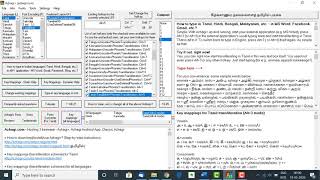
  • At the end of installation, 'Azhagi' will start automatically and the opening main editor (Non-Unicode) window of Azhagi will get displayed (as seen below)
    (Note: The screen snapshot below is that of Azhagi 6.3.1)
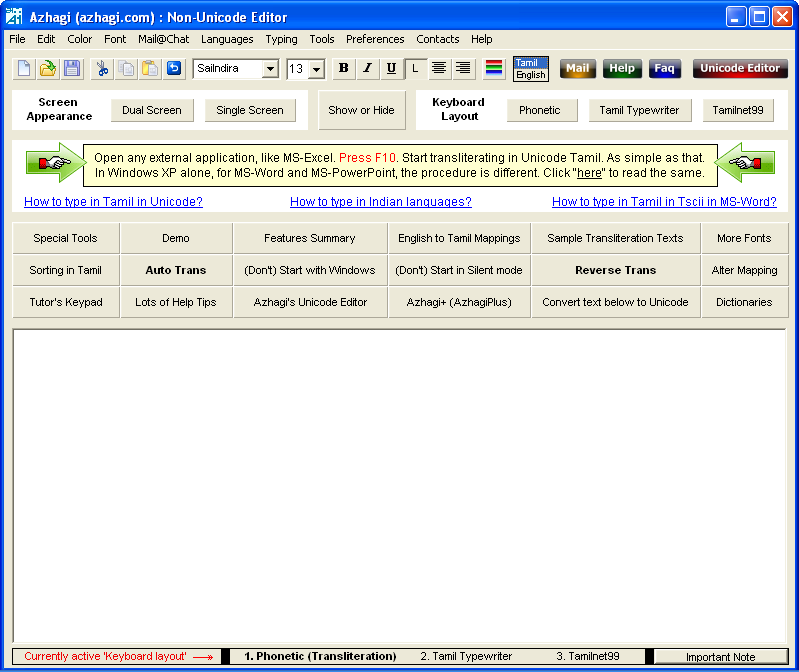


Opening document

  • When you start Azhagi, usually two windows will get opened. One displaying the Non-Unicode editor and the other displaying the Unicode editor.

  • In the window displaying the Non-Unicode editor, click anywhere on the banner (with two hands pointing at either end) which appears at the top of the window.



  • This will open a document in full screen. In this opening document, you can find various questions (as given here) answered. PLEASE read them.

How to directly type in Tamil in MS-Word?

  • Using Azhagi, you can type in Tamil in MS-Word in two different font encodings - "Unicode" and "Tscii"(Non-Unicode).

    • How to type in Unicode Tamil has been explained step-by-step in this page. It is just one step only, as such.

    • How to type in Tscii (non-unicode) has been explained step-by-step in this page.

How to directly type in Tamil in ANY application?

  • Kindly please click here. It is just one step only, as such.

How to effect Indic (Hindi, Kannada, etc.) input in MS-Word?

  • I suggest you use Azhagi+ (AzhagiPlus) instead of Azhagi, to type in Hindi (Telugu, Kannada, etc. ) in MS-Word. Because, it is just a one-step process. The instruction for the same is here - oper-plus.php#dtany. However, if you are particular (not advisable) that you wish to type using Azhagi only, then please click here.

  • If you wish to download Azhagi+, please CLICK HERE to reach the "Azhagi+ download link" section - available in the home page of azhagi.com itself.

How to effect Indic (Telugu, Malayalam, etc.) input in ANY application?

  • I suggest you use Azhagi+ (AzhagiPlus) instead of Azhagi, to type in Hindi (Tamil, Bengali, Gujarati, etc. ) in ANY application. Because, it is just a one-step process. The instruction for the same is here - oper-plus.php#dtany. However, if you are particular (not advisable) that you wish to type using Azhagi only, then click here.

  • If you wish to download Azhagi+, please CLICK HERE to reach the "Azhagi+ download link" section - available in the home page of azhagi.com itself.

Important 'typing tips' for 'Tamil Typewriter' & 'TamilNet99' users

  • If your operating system is Windows Vista/7/8/8.1/10 (and above) and if you are using 'Tamil Typewriter' or 'TamilNet99' input mode and if you are encountering problems during 'Direct Tamil Input' in certain MS Office applications, then kindly use one of the beta versions (6.2.9 SBS1 or 6.2.9 SBS2) of Azhagi. Then you won't face any problems. For details and for downloading these beta versions of Azhagi, please visit sbetas.php. You can also start using Azhagi+

  • By default, 'Azhagi' starts typing in 'Phonetic (Transliteration)' mode only. So, if you wish to type in 'TamilNet99' or 'Tamil Typewriter' mode, select your desired typing mode first. To do the same, click on 'Preferences->Change Keyboard Layout' menu item in Azhagi's opening screen and choose your preferred layout. Alternately, you can also right click on Azhagi's system tray operating icon (which icon you can see at the right bottom of your computer screen, usually near the date/time indicator), move your mouse to 'Typing Mode' and select the preferred layout. For e.g., if you wish to type in 'Tamil Typewriter' mode, then select 'Tamil Typewriter - Traditional' menu item. Once that is done, close* the menu.
    (*) If the menu does not close automatically after selecting your desired typing mode, click the 'Sink/Close Menu' menu item to close it.

  • Once you have ensured that you have selected your desired typing mode, if you wish to type in Unicode in ANY application, then see instructions for the same here. If you wish to type in Tscii (Non-Unicode) in MS-Word, then see instructions for the same at dtword.php

Indic input using Azhagi's own inbuilt editors

  • You can type/transliterate from within Azhagi also - in either 'Tscii' or in 'Unicode'.

    • You can transliterate in Tscii in either 'Dual Screen' or 'Single Screen'. And, you can convert the Tamil text generated by you to Unicode instantly, by clicking the 'Convert text below to Unicode' button.

    • You can transliterate in UNICODE (in all major Indian languages) in a separate Unicode Editor, which you can invoke by pressing 'F8' or clicking the 'Unicode Editor' button (as you see in the screenshot below) at the top right of Azhagi's opening screen.


      (Note: The screen snapshot below is that of the Unicode editor in Azhagi 6.3.1)
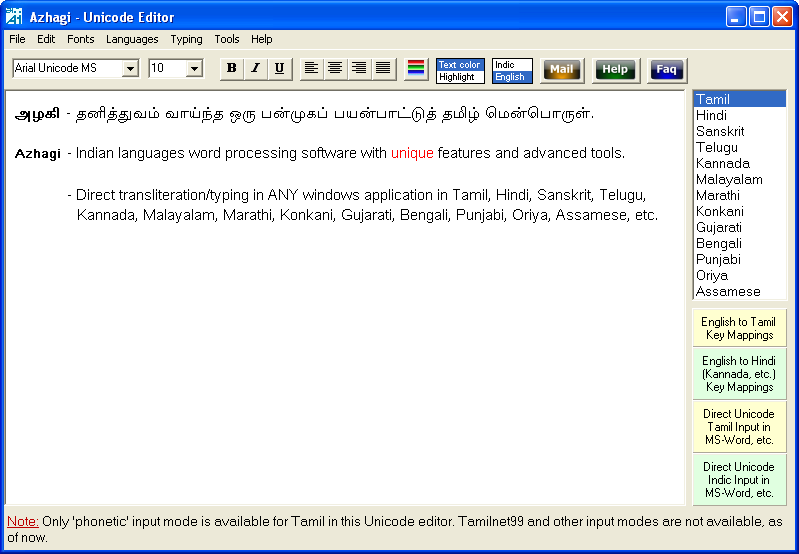


  • Phonetic (type as you speak) keyboard layout is the default for the non-unicode editor. You can change it to 'TamilTypewriting' or 'Tamilnet99' keyboard layout, whenever you wish to.

Other unique Power-tools

  • Please visit ards.php for comprehensive details on the following power-tools.

    • Auto Transliteration

    • Reverse Transliteration

    • Dual-Screen Transliteration

    • SAT Transliteration

Azhagi's operating icons

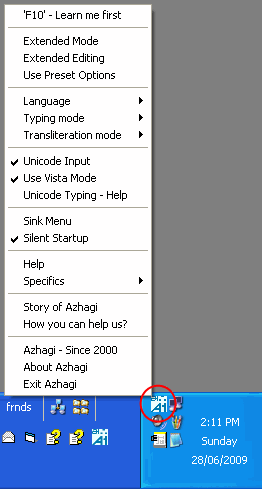
  • If you have closed Azhagi and wish to restart it, then click on Azhagi's shortcut icon in the Desktop [See screenshot below to know how the icon will look like. Note that Azhagi's shortcut icon will be available in StartMenu and Quicklaunch bar also. You can avail them too. By mistake, do not click on Azhagi's Installation/Setup File again. This will only start reinstalling Azhagi].


    Azhagi application will get started and Azhagi's operating icon (a minimised image of the snapshot you see above) will appear in the right bottom of your desktop/computer screen, most often next to the date/time indicator. You can left-click (just a single click; not double-click) on that icon to show/hide Azhagi's main editing screen. You can right-click on that icon to see a menu of options/info pop up. See screenshot below for better understanding.


Screen Snapshots

  • Please see snaps.php without fail for seeing the working of Azhagi in various modes (Dual Screen, Single Screen, etc.) and in various applications (Ms-Word, Excel, Chat windows, Email clients, etc.)

Settings/Options/Preferences

  • In the 2 main opening screens (editors) of Azhagi, click on 'Preferences' menu (if it is Azhagi's non-unicode editor) and 'Tools->Options' menu item (if it is Azhagi's Unicode editor) resp.

  • You have quite a few options to set/change under different titles and categories. What each option means is explained in the help topics, which you can access from the 'Help' menu.

Features of Azhagi

English to Tamil (Hindi, Malayalam, etc.) Key'mappings

Creating websites in Tamil (Hindi, Malayalam, etc.)

  • A comprehensive FAQ on how to create Unicode websites in Tamil can be read here. Similar instructions are to be followed for creating websites in Hindi, Sanskrit, Telugu, Malayalam, etc.

More free Tamil fonts

  • Click here to get more free Tamil fonts - in Tscii, Unicode, TAB, TAM and various other font encodings.

More free Indian language Unicode fonts

  • Click here to get more free Indian language Unicode fonts.

My contacts


🌷🌿🤲 ஒரு நெஞ்சார்ந்த வேண்டுகோள் 🤲🌿🌷
🌷🌿🤲 A heartfelt Appeal 🤲🌿🌷
  • Please note that there is no team here. I have been developing all of Azhagi's free apps from my home, amidst many hardships (including extreme health situations at times), ever since 2000, as an offering to God.

  • All the support for this SatKarma – a saga of Love - lovingly provided by my better half. Ultimately, All Glory and Thanks to the Lord Almighty alone. Forever.

  • All the Azhagi free apps (16 of them as of today, and more to come, God willing) are world class in nature, with many never-before-seen features, benefiting crores across the globe. All these unique apps are available to you at absolutely no cost. Peerless and Priceless. Support for them is free too — even over phone, whatsapp, etc.!!! (Thanks to the Great gopalan sir — eternally, in tons), which is unheard-of, unprecedented and unparalleled, in the field of freeware.

  • So, I kindly request you to spread the word about all the Azhagi free apps, esp. in the social media, in as many ways as possible, so that more and more of the society get benefited. One best way is to host a video on one or more of the Azhagi free apps in your YouTube channel (if you own one). I have listed 36 other ways in my spread.php page. Also, please visit contribute.php page and see in what all ways you can contribute to Azhagi — nonmonetarily, nonmaterially.

  • By the way, since many years (I will be turning 59 soon), I have striven my best to not to watch TV, not to see movies, not to read newspapers, not to hear songs, etc. I go out of my home itself only rarely. I have worked ever so hard on Azhagi, working late night many a times. I have worked the whole night through too, now and then (extending to the next day too occasionally), even amidst my chronic health issues. My motto is to spend as much time as I can on Azhagi free apps and Azhagi free apps alone (in other words, in Azhagi SatKarma alone), until I am destined to.

  • In fact, as mentioned here, I have been praying to God to give me boons like "no-Hunger, no-Sleep, no-Thirst, etc."... with the best of health condition and a serene mental state always, in order to carry out Azhagi SatKarma without any interruptions, whatsoever.

  • So, after using any of Azhagi's free apps for a few days, kindly please share your feedback and testimonials for it (at my email address Birthless.Deathless@gmail.com). I would greatly appreciate it. Alternatively, you can share your feedback or testimonials in Azhagi's facebook group, if you prefer it that way. Even a one-liner saying "Everything is working well" would be of immense value. Thanks.

  • You may also prefer to share your testimonial or heartfelt feelings on Azhagi in the comments section of the very loving write-up on Azhagi in 'Sri Sathya Sai Yugam' webzine. I will feel mighty glad.

  • In my own personal humble opinion, sharing your testimonial for Azhagi is one other soulful opportunity for you to offer your immense Gratitude to the Divine. Thanks.

  • For examples on how users have shared their hearty/heartfelt testimonials for Azhagi in the past, please visit the testimonials page.
Spread, Host, and Contribute
  • Spread the word: Once you have started to use any of the Azhagi free apps comfortably, I kindly request you to spread the word about them, esp. in the social media, in as many ways as possible, so that more and more of the society get benefited. Thanks.
  • Host a video: Please host a video demo on any of the Azhagi free apps in your YouTube channel (if you own one) — this is one of the best ways in which you can help spread the word about 'Azhagi for Mac'. I have listed 36 other ways in my spread.php page.
  • Contribute non-monetarily, non-materially: Please visit contribute.php page and see in what all ways you can contribute to Azhagi, non-monetarily, non-materially.
🌷🌿🤲 ஒரு நெஞ்சார்ந்த வேண்டுகோள் 🤲🌿🌷
🌷🌿🤲 A heartfelt Appeal 🤲🌿🌷
  • Please note that there is no team here. I have been developing all of Azhagi's free apps from my home, amidst many hardships (including extreme health situations at times), ever since 2000, as an offering to God.

  • All the support for this SatKarma – a saga of Love - lovingly provided by my better half. Ultimately, All Glory and Thanks to the Lord Almighty alone. Forever.

  • All the Azhagi free apps (16 of them as of today, and more to come, God willing) are world class in nature, with many never-before-seen features, benefiting crores across the globe. All these unique apps are available to you at absolutely no cost. Peerless and Priceless. Support for them is free too — even over phone, whatsapp, etc.!!! (Thanks to the Great gopalan sir — eternally, in tons), which is unheard-of, unprecedented and unparalleled, in the field of freeware.

  • So, I kindly request you to spread the word about all the Azhagi free apps, esp. in the social media, in as many ways as possible, so that more and more of the society get benefited. One best way is to host a video on one or more of the Azhagi free apps in your YouTube channel (if you own one). I have listed 36 other ways in my spread.php page. Also, please visit contribute.php page and see in what all ways you can contribute to Azhagi — nonmonetarily, nonmaterially.

  • By the way, since many years (I will be turning 59 soon), I have striven my best to not to watch TV, not to see movies, not to read newspapers, not to hear songs, etc. I go out of my home itself only rarely. I have worked ever so hard on Azhagi, working late night many a times. I have worked the whole night through too, now and then (extending to the next day too occasionally), even amidst my chronic health issues. My motto is to spend as much time as I can on Azhagi free apps and Azhagi free apps alone (in other words, in Azhagi SatKarma alone), until I am destined to.

  • In fact, as mentioned here, I have been praying to God to give me boons like "no-Hunger, no-Sleep, no-Thirst, etc."... with the best of health condition and a serene mental state always, in order to carry out Azhagi SatKarma without any interruptions, whatsoever.

  • So, after using any of Azhagi's free apps for a few days, kindly please share your feedback and testimonials for it (at my email address Birthless.Deathless@gmail.com). I would greatly appreciate it. Alternatively, you can share your feedback or testimonials in Azhagi's facebook group, if you prefer it that way. Even a one-liner saying "Everything is working well" would be of immense value. Thanks.

  • You may also prefer to share your testimonial or heartfelt feelings on Azhagi in the comments section of the very loving write-up on Azhagi in 'Sri Sathya Sai Yugam' webzine. I will feel mighty glad.

  • In my own personal humble opinion, sharing your testimonial for Azhagi is one other soulful opportunity for you to offer your immense Gratitude to the Divine. Thanks.

  • For examples on how users have shared their hearty/heartfelt testimonials for Azhagi in the past, please visit the testimonials page.
Spread, Host, and Contribute
  • Spread the word: Once you have started to use any of the Azhagi free apps comfortably, I kindly request you to spread the word about them, esp. in the social media, in as many ways as possible, so that more and more of the society get benefited. Thanks.
  • Host a video: Please host a video demo on any of the Azhagi free apps in your YouTube channel (if you own one) — this is one of the best ways in which you can help spread the word about 'Azhagi for Mac'. I have listed 36 other ways in my spread.php page.
  • Contribute non-monetarily, non-materially: Please visit contribute.php page and see in what all ways you can contribute to Azhagi, non-monetarily, non-materially.

Beloved Baba says 👉       All work is God’s; He inspires, He helps, He executes, He enjoys, and He is pleased.        👈 Beloved Baba says
Videos on Tamil typing using Azhagi+
Not able to fetch video thumbnail Not able to fetch video thumbnail Not able to fetch video thumbnail Not able to fetch video thumbnail Not able to fetch video thumbnail Not able to fetch video thumbnail Not able to fetch video thumbnail Not able to fetch video thumbnail Not able to fetch video thumbnail Not able to fetch video thumbnail Not able to fetch video thumbnail Not able to fetch video thumbnail Not able to fetch video thumbnail Not able to fetch video thumbnail Not able to fetch video thumbnail Not able to fetch video thumbnail Not able to fetch video thumbnail Not able to fetch video thumbnail Not able to fetch video thumbnail Not able to fetch video thumbnail Not able to fetch video thumbnail Not able to fetch video thumbnail Not able to fetch video thumbnail Not able to fetch video thumbnail Not able to fetch video thumbnail Not able to fetch video thumbnail Not able to fetch video thumbnail Not able to fetch video thumbnail Not able to fetch video thumbnail Not able to fetch video thumbnail Not able to fetch video thumbnail Not able to fetch video thumbnail Not able to fetch video thumbnail Not able to fetch video thumbnail Not able to fetch video thumbnail Not able to fetch video thumbnail Not able to fetch video thumbnail Not able to fetch video thumbnail Not able to fetch video thumbnail Not able to fetch video thumbnail Not able to fetch video thumbnail Not able to fetch video thumbnail Not able to fetch video thumbnail Not able to fetch video thumbnail Not able to fetch video thumbnail Not able to fetch video thumbnail Not able to fetch video thumbnail Not able to fetch video thumbnail Not able to fetch video thumbnail Not able to fetch video thumbnail Not able to fetch video thumbnail Not able to fetch video thumbnail Not able to fetch video thumbnail Not able to fetch video thumbnail Not able to fetch video thumbnail Not able to fetch video thumbnail Not able to fetch video thumbnail Not able to fetch video thumbnail Not able to fetch video thumbnail Not able to fetch video thumbnail Not able to fetch video thumbnail Not able to fetch video thumbnail Not able to fetch video thumbnail Not able to fetch video thumbnail Not able to fetch video thumbnail Not able to fetch video thumbnail Not able to fetch video thumbnail Not able to fetch video thumbnail Not able to fetch video thumbnail Not able to fetch video thumbnail Not able to fetch video thumbnail Not able to fetch video thumbnail Not able to fetch video thumbnail Not able to fetch video thumbnail Not able to fetch video thumbnail Not able to fetch video thumbnail Not able to fetch video thumbnail Not able to fetch video thumbnail Not able to fetch video thumbnail Not able to fetch video thumbnail Not able to fetch video thumbnail Not able to fetch video thumbnail Not able to fetch video thumbnail Not able to fetch video thumbnail Not able to fetch video thumbnail Not able to fetch video thumbnail Not able to fetch video thumbnail Not able to fetch video thumbnail Not able to fetch video thumbnail Not able to fetch video thumbnail Not able to fetch video thumbnail Not able to fetch video thumbnail Not able to fetch video thumbnail Not able to fetch video thumbnail Not able to fetch video thumbnail Not able to fetch video thumbnail Not able to fetch video thumbnail Not able to fetch video thumbnail Not able to fetch video thumbnail Not able to fetch video thumbnail Not able to fetch video thumbnail Not able to fetch video thumbnail Not able to fetch video thumbnail Not able to fetch video thumbnail Not able to fetch video thumbnail Not able to fetch video thumbnail Not able to fetch video thumbnail Not able to fetch video thumbnail Not able to fetch video thumbnail Not able to fetch video thumbnail Not able to fetch video thumbnail
Videos on SITA (SaiIndira TAmil) Self-Typing fonts
SITA fonts - Unique and first of their kind - Click here for full details
Not able to fetch video thumbnail Not able to fetch video thumbnail
Videos on Indic typing using Azhagi+
Not able to fetch video thumbnail Not able to fetch video thumbnail Not able to fetch video thumbnail Not able to fetch video thumbnail Not able to fetch video thumbnail Not able to fetch video thumbnail Not able to fetch video thumbnail
Videos on AAW, AAE
Not able to fetch video thumbnail Not able to fetch video thumbnail Not able to fetch video thumbnail
Videos on Azhagi++
Not able to fetch video thumbnail Not able to fetch video thumbnail Not able to fetch video thumbnail Not able to fetch video thumbnail Not able to fetch video thumbnail
Video on Alt+3 vs Alt+4
Not able to fetch video thumbnail
Alt+3
na=ந, ee=ஈ, oo=ஊ
VS
wa=ந, ee=ஏ, oo=ஓ
Alt+4
Videos on Portable Azhagi+
Not able to fetch video thumbnail Not able to fetch video thumbnail Not able to fetch video thumbnail Not able to fetch video thumbnail