

keyboard
How to directly type in Tamil, Hindi, Telugu, Bengali, etc. in MS Word?
Easiest and Fastest
Azhagi+ provides you the easiest and fastest way to alternately type in English and Tamil (Hindi#, etc.) in MS-Word (or any other application, for that matter - Photoshop, Facebook, Twitter, Gmail, Instagaram, Whatsapp, Pagemaker, Indesign, Quora, Excel, PowerPoint, etc., etc.)(#) Hindi, Sanskrit, Telugu, Kannada, Malayalam, Marathi, Gujarati, Bengali, Punjabi, Oriya, Assamese, Sourashtra, Grantha, etc., etc.
Typing in Tamil in MS Word, using Azhagi+
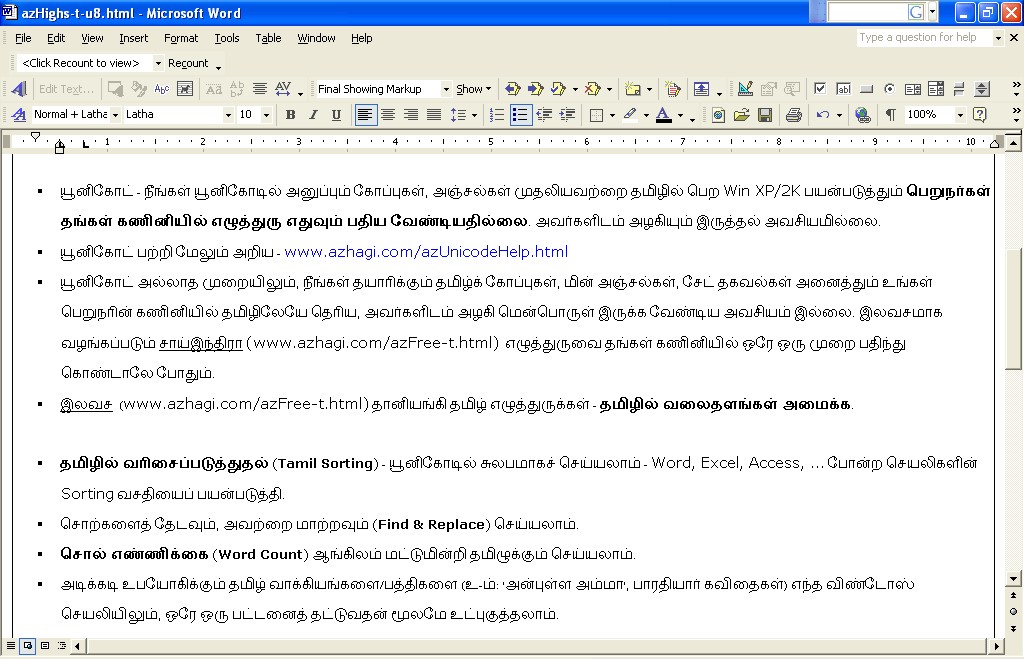
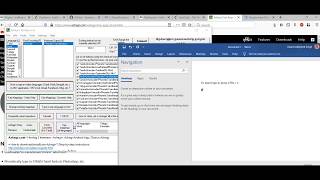
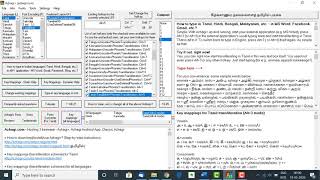
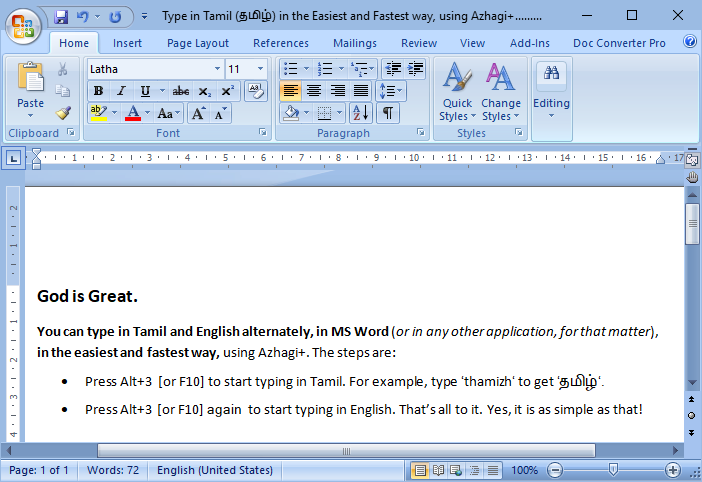
The video demo as well as the screenshot below show how to type in Tamil in MS Word, in Unicode. One can do this Tamil transliteration and Tamil typing in ANY Windows application like Photoshop, Facebook, Gmail, Twitter, Whatsapp, Blog, Excel, InDesign, Instagram, Quora, etc. Steps are as follows:- Start Azhagi+ (AzhagiPlus).
- Open MS-Word (in fact, you can open any other application, for that matter).
- Press the required hotkey Alt+3 (or F10 or F11) while cursor is in the typing area.
- Type in English and see it in Tamil. That is all to it.
- Press the same hotkey Alt+3 again. And, you can start typing in English again. As simple as that.
Note-1b: If you are using Windows10, please effect these language settings as your first step. This is an operating system requirement (i.e. your Windows operating system requires it and not Azhagi+).
Note-2: Instead of Alt+3, you can use any other hotkey of your choice too. Steps to change hotkey are here
Note-3: Azhagi's facebook support forum is at facebook.com/groups/Azhagi - this is a public Facebook group for answering users' queries. Support is also 100% FREE. But, please post any queries only after reading this announcement of mine "fully".
How to type in Tamil in ANY Non-Unicode Tamil font (STMZH, Vanavil, etc.), using Azhagi+?
- Please see the very simple steps in this page to type in Tamil in ALL the NonUnicode Tamil fonts - SaiIndira, TamilBible, STMZH, Vanavil, Shreelipi, LT-TM (IndoWord), Tscii, Bamini, TAM, TAB, SunTommy, Amudham, Ka, Diamond, DCI+Tml+Ismail, Gee_Tamil, ELCOT-Madurai, ELCOT-Bilingual, Shree, Chenet Platinum, Mylai Plain, etc., etc., etc.
Portable version of Azhagi+ and its immense advantage (only for those who are interested)
The portable version of Azhagi+ is OPTIONAL, for any user. You shall use it ONLY if you feel the need and ONLY if you are conversant with portable apps. For more details on the portable version of Azhagi+, please watch the video demo below (just 2.5 minutes only). The immense advantage of portable version is that you can carry Azhagi+ with you wherever you go - in your pen drive. And, use it to straightaway start typing in any Windows system - in Tamil, Hindi, Sanskrit, etc. - in any application, even without installing Azhagi+ (since you will be using Azhagi+ from your pen drive itself). Of course, you can use the portable version in your desktop/laptop too. So, portable version is not necessarily to be used in a pendrive alone. The thing is that it does not require any installation in any system. You just extract a zip file and start working. It is very simple, that way.Typing in Hindi in MS Word, using Azhagi+
The video demo hereunder shows how to type in Hindi in MS Word, in Unicode. One can do this Hindi transliteration and Hindi typing in ANY Windows application like Photoshop, Facebook, Gmail, Twitter, Whatsapp, Blog, Excel, InDesign, Instagram, Quora, etc. Steps are as follows:- Start Azhagi+ (AzhagiPlus).
- Open MS-Word (in fact, you can open any other application, for that matter).
- Press the required hotkey Ctrl+1 while cursor is in the typing area.
- Type in English and see it in Hindi. That is all to it.
- Press the same hotkey Ctrl+1 again. And, you can start typing in English again. As simple as that.
Note-1b: If you are using Windows10, please effect these language settings as your first step. This is an operating system requirement (i.e. your Windows operating system requires it and not Azhagi+).
Note-2: Instead of Ctrl+1, you can use the global hotkey F10 or any other hotkey of your choice too. Steps to change hotkey are here.
Note-3: Azhagi's facebook support forum is at facebook.com/groups/Azhagi - this is a public Facebook group for answering users' queries. Support is also 100% FREE. But, please join and post any queries only after reading this announcement of mine "fully".
Typing in Sanskrit in MS Word, using Azhagi+
The video demo hereabove shows how to type in Sanskrit in MS Word, in Unicode. One can do this Sanskri transliteration and Sanskrit typing in ANY Windows application like Photoshop, Facebook, Gmail, Twitter, Whatsapp, Blog, Excel, InDesign, Instagram, Quora, etc. Steps are as follows:- Start Azhagi+ (AzhagiPlus).
- Open MS-Word (in fact, you can open any other application, for that matter).
- Press the required hotkey Ctrl+2 while cursor is in the typing area.
- Type in English and see it in Sanskrit. That is all to it.
- Press the same hotkey Ctrl+2 again. And, you can start typing in English again. As simple as that.
Note-1b: If you are using Windows10, please effect these language settings as your first step. This is an operating system requirement (i.e. your Windows operating system requires it and not Azhagi+).
Note-2: Instead of Ctrl+2, you can use the global hotkey F10 or any other hotkey of your choice too. Steps to change hotkey are here.
Note-3: Azhagi's facebook support forum is at facebook.com/groups/Azhagi - this is a public Facebook group for answering users' queries. Support is also 100% FREE. But, please join and post any queries only after reading this announcement of mine "fully".
Typing in Telugu in MS Word, using Azhagi+
The video demo hereabove shows how to type in Telugu in MS Word, in Unicode. One can do this Telugu transliteration and Telugu typing in ANY Windows application like Photoshop, Facebook, Gmail, Twitter, Whatsapp, Blog, Excel, InDesign, Instagram, Quora, etc. Steps are as follows:- Start Azhagi+ (AzhagiPlus).
- Open MS-Word (in fact, you can open any other application, for that matter).
- Press the required hotkey Ctrl+3 while cursor is in the typing area.
- Type in English and see it in Telugu. That is all to it.
- Press the same hotkey Ctrl+3 again. And, you can start typing in English again. As simple as that.
Note-1b: If you are using Windows10, please effect these language settings as your first step. This is an operating system requirement (i.e. your Windows operating system requires it and not Azhagi+).
Note-2: Instead of Ctrl+3, you can use the global hotkey F10 or any other hotkey of your choice too. Steps to change hotkey are here.
Note-3: Azhagi's facebook support forum is at facebook.com/groups/Azhagi - this is a public Facebook group for answering users' queries. Support is also 100% FREE. But, please join and post any queries only after reading this announcement of mine "fully".
Typing in Kannada in MS Word, using Azhagi+
The video demo hereabove shows how to type in Kannada in MS Word, in Unicode. One can do this Kannada transliteration and Kannada typing in ANY Windows application like Photoshop, Facebook, Gmail, Twitter, Whatsapp, Blog, Excel, InDesign, Instagram, Quora, etc. Steps are as follows:- Start Azhagi+ (AzhagiPlus).
- Open MS-Word (in fact, you can open any other application, for that matter).
- Press the required hotkey Ctrl+4 while cursor is in the typing area.
- Type in English and see it in Kannada. That is all to it.
- Press the same hotkey Ctrl+4 again. And, you can start typing in English again. As simple as that.
Note-1b: If you are using Windows10, please effect these language settings as your first step. This is an operating system requirement (i.e. your Windows operating system requires it and not Azhagi+).
Note-2: Instead of Ctrl+4, you can use the global hotkey F10 or any other hotkey of your choice too. Steps to change hotkey are here.
Note-3: Azhagi's facebook support forum is at facebook.com/groups/Azhagi - this is a public Facebook group for answering users' queries. Support is also 100% FREE. But, please join and post any queries only after reading this announcement of mine "fully".
Typing in Malayalam in MS Word, using Azhagi+
The video demo hereabove shows how to type in Malayalam in MS Word, in Unicode. One can do this Malayalam transliteration and Malayalam typing in ANY Windows application like Photoshop, Facebook, Gmail, Twitter, Whatsapp, Blog, Excel, InDesign, Instagram, Quora, etc. Steps are as follows:- Start Azhagi+ (AzhagiPlus).
- Open MS-Word (in fact, you can open any other application, for that matter).
- Press the required hotkey Ctrl+5 while cursor is in the typing area.
- Type in English and see it in Malayalam. That is all to it.
- Press the same hotkey Ctrl+5 again. And, you can start typing in English again. As simple as that.
Note-1b: If you are using Windows10, please effect these language settings as your first step. This is an operating system requirement (i.e. your Windows operating system requires it and not Azhagi+).
Note-2: Instead of Ctrl+5, you can use the global hotkey F10 or any other hotkey of your choice too. Steps to change hotkey are here.
Note-3: Azhagi's facebook support forum is at facebook.com/groups/Azhagi - this is a public Facebook group for answering users' queries. Support is also 100% FREE. But, please join and post any queries only after reading this announcement of mine "fully".
Typing in Gujarati in MS Word, using Azhagi+
The video demo hereabove shows how to type in Gujarati in MS Word, in Unicode. One can do this Gujarati transliteration and Gujarati typing in ANY Windows application like Photoshop, Facebook, Gmail, Twitter, Whatsapp, Blog, Excel, InDesign, Instagram, Quora, etc. Steps are as follows:- Start Azhagi+ (AzhagiPlus).
- Open MS-Word (in fact, you can open any other application, for that matter).
- Press the required hotkey Ctrl+8 while cursor is in the typing area.
- Type in English and see it in Gujarati. That is all to it.
- Press the same hotkey Ctrl+8 again. And, you can start typing in English again. As simple as that.
Note-1b: If you are using Windows10, please effect these language settings as your first step. This is an operating system requirement (i.e. your Windows operating system requires it and not Azhagi+).
Note-2: Instead of Ctrl+8, you can use the global hotkey F10 or any other hotkey of your choice too. Steps to change hotkey are here.
Note-3: Azhagi's facebook support forum is at facebook.com/groups/Azhagi - this is a public Facebook group for answering users' queries. Support is also 100% FREE. But, please join and post any queries only after reading this announcement of mine "fully".
Typing in Bengali in MS Word, using Azhagi+
The video demo hereabove shows how to type in Bengali in MS Word, in Unicode. One can do this Bengali transliteration and Bengali typing in ANY Windows application like Photoshop, Facebook, Gmail, Twitter, Whatsapp, Blog, Excel, InDesign, Instagram, Quora, etc. Steps are as follows:- Start Azhagi+ (AzhagiPlus).
- Open MS-Word (in fact, you can open any other application, for that matter).
- Press the required hotkey Ctrl+9 while cursor is in the typing area.
- Type in English and see it in Bengali. That is all to it.
- Press the same hotkey Ctrl+9 again. And, you can start typing in English again. As simple as that.
Note-1b: If you are using Windows10, please effect these language settings as your first step. This is an operating system requirement (i.e. your Windows operating system requires it and not Azhagi+).
Note-2: Instead of Ctrl+9, you can use the global hotkey F10 or any other hotkey of your choice too. Steps to change hotkey are here.
Note-3: Azhagi's facebook support forum is at facebook.com/groups/Azhagi - this is a public Facebook group for answering users' queries. Support is also 100% FREE. But, please join and post any queries only after reading this announcement of mine "fully".
Typing in Punjabi in MS Word, using Azhagi+
The video demo hereabove shows how to type in Punjabi in MS Word, in Unicode. One can do this Punjabi transliteration and Punjabi typing in ANY Windows application like Photoshop, Facebook, Gmail, Twitter, Whatsapp, Blog, Excel, InDesign, Instagram, Quora, etc. Steps are as follows:- Start Azhagi+ (AzhagiPlus).
- Open MS-Word (in fact, you can open any other application, for that matter).
- Press the required hotkey Ctrl+0 while cursor is in the typing area.
- Type in English and see it in Punjabi. That is all to it.
- Press the same hotkey Ctrl+0 again. And, you can start typing in English again. As simple as that.
Note-1b: If you are using Windows10, please effect these language settings as your first step. This is an operating system requirement (i.e. your Windows operating system requires it and not Azhagi+).
Note-2: Instead of Ctrl+0, you can use the global hotkey F10 or any other hotkey of your choice too. Steps to change hotkey are here.
Note-3: Azhagi's facebook support forum is at facebook.com/groups/Azhagi - this is a public Facebook group for answering users' queries. Support is also 100% FREE. But, please join and post any queries only after reading this announcement of mine "fully".
Typing in Oriya in MS Word, using Azhagi+
The video demo hereabove shows how to type in Oriya in MS Word, in Unicode. One can do this Oriya transliteration and Oriya typing in ANY Windows application like Photoshop, Facebook, Gmail, Twitter, Whatsapp, Blog, Excel, InDesign, Instagram, Quora, etc. Steps are as follows:- Start Azhagi+ (AzhagiPlus).
- Open MS-Word (in fact, you can open any other application, for that matter).
- Press the required hotkey Ctrl+F11 while cursor is in the typing area.
- Type in English and see it in Oriya. That is all to it.
- Press the same hotkey Ctrl+F11 again. And, you can start typing in English again. As simple as that.
Note-1b: If you are using Windows10, please effect these language settings as your first step. This is an operating system requirement (i.e. your Windows operating system requires it and not Azhagi+).
Note-2: Instead of Ctrl+F11, you can use the global hotkey F10 or any other hotkey of your choice too. Steps to change hotkey are here.
Note-3: Azhagi's facebook support forum is at facebook.com/groups/Azhagi - this is a public Facebook group for answering users' queries. Support is also 100% FREE. But, please join and post any queries only after reading this announcement of mine "fully".
Typing in Assamese in MS Word, using Azhagi+
The video demo hereabove shows how to type in Assamese in MS Word, in Unicode. One can do this Assamese transliteration and Assamese typing in ANY Windows application like Photoshop, Facebook, Gmail, Twitter, Whatsapp, Blog, Excel, InDesign, Instagram, Quora, etc. Steps are as follows:- Start Azhagi+ (AzhagiPlus).
- Open MS-Word (in fact, you can open any other application, for that matter).
- Press the required hotkey Ctrl+F12 while cursor is in the typing area.
- Type in English and see it in Assamese. That is all to it.
- Press the same hotkey Ctrl+F12 again. And, you can start typing in English again. As simple as that.
Note-1b: If you are using Windows10, please effect these language settings as your first step. This is an operating system requirement (i.e. your Windows operating system requires it and not Azhagi+).
Note-2: Instead of Ctrl+F12, you can use the global hotkey F10 or any other hotkey of your choice too. Steps to change hotkey are here.
Note-3: Azhagi's facebook support forum is at facebook.com/groups/Azhagi - this is a public Facebook group for answering users' queries. Support is also 100% FREE. But, please join and post any queries only after reading this announcement of mine "fully".
Typing in Marathi in MS Word, using Azhagi+
The video demo hereabove shows how to type in Marathi in MS Word, in Unicode. One can do this Marathi transliteration and Marathi typing in ANY Windows application like Photoshop, Facebook, Gmail, Twitter, Whatsapp, Blog, Excel, InDesign, Instagram, Quora, etc. Steps are as follows:- Start Azhagi+ (AzhagiPlus).
- Open MS-Word (in fact, you can open any other application, for that matter).
- Press the required hotkey Ctrl+6 while cursor is in the typing area.
- Type in English and see it in Marathi. That is all to it.
- Press the same hotkey Ctrl+6 again. And, you can start typing in English again. As simple as that.
Note-1b: If you are using Windows10, please effect these language settings as your first step. This is an operating system requirement (i.e. your Windows operating system requires it and not Azhagi+).
Note-2: Instead of Ctrl+6, you can use the global hotkey F10 or any other hotkey of your choice too. Steps to change hotkey are here.
Note-3: Azhagi's facebook support forum is at facebook.com/groups/Azhagi - this is a public Facebook group for answering users' queries. Support is also 100% FREE. But, please join and post any queries only after reading this announcement of mine "fully".
Typing in Sourashtra in MS Word, using Azhagi+
The video demo hereabove shows how to type in Saurashtra in MS Word, in Unicode. One can do this Sourashtra transliteration and Saurashtra typing in ANY Windows application like Photoshop, Facebook, Gmail, Twitter, Whatsapp, Blog, Excel, InDesign, Instagram, Quora, etc. Steps are as follows:- Start Azhagi+ (AzhagiPlus).
- Open MS-Word (in fact, you can open any other application, for that matter).
- Press the required hotkey Ctrl+F10 while cursor is in the typing area.
- Type in English and see it in Saurashtra. That is all to it.
- Press the same hotkey Ctrl+F10 again. And, you can start typing in English again. As simple as that.
Note-1b: If you are using Windows10, please effect these language settings as your first step. This is an operating system requirement (i.e. your Windows operating system requires it and not Azhagi+).
Note-2: Instead of Ctrl+F10, you can use the global hotkey F10 or any other hotkey of your choice too. Steps to change hotkey are here.
Note-3: Azhagi's facebook support forum is at facebook.com/groups/Azhagi - this is a public Facebook group for answering users' queries. Support is also 100% FREE. But, please join and post any queries only after reading this announcement of mine "fully".
Typing in Konkani in MS Word, using Azhagi+
The video demo hereabove shows how to type in Konkani in MS Word, in Unicode. One can do this Konkani transliteration and Konkani typing in ANY Windows application like Photoshop, Facebook, Gmail, Twitter, Whatsapp, Blog, Excel, InDesign, Instagram, Quora, etc. Steps are as follows:- Start Azhagi+ (AzhagiPlus).
- Open MS-Word (in fact, you can open any other application, for that matter).
- Press the required hotkey Ctrl+7 while cursor is in the typing area.
- Type in English and see it in Konkani. That is all to it.
- Press the same hotkey Ctrl+7 again. And, you can start typing in English again. As simple as that.
Note-1b: If you are using Windows10, please effect these language settings as your first step. This is an operating system requirement (i.e. your Windows operating system requires it and not Azhagi+).
Note-2: Instead of Ctrl+7, you can use the global hotkey F10 or any other hotkey of your choice too. Steps to change hotkey are here.
Note-3: Azhagi's facebook support forum is at facebook.com/groups/Azhagi - this is a public Facebook group for answering users' queries. Support is also 100% FREE. But, please join and post any queries only after reading this announcement of mine "fully".
Typing in Devanagari in MS Word, using Azhagi+
The video demo hereabove shows how to type in Devanagari in MS Word, in Unicode. One can do this Devanagari transliteration and Devanagari typing in ANY Windows application like Photoshop, Facebook, Gmail, Twitter, Whatsapp, Blog, Excel, InDesign, Instagram, Quora, etc. Steps are as follows:- Start Azhagi+ (AzhagiPlus).
- Open MS-Word (in fact, you can open any other application, for that matter).
- Press the required hotkey Ctrl+F1 while cursor is in the typing area.
- Type in English and see it in Devanagari script. That is all to it.
- Press the same hotkey Ctrl+F1 again. And, you can start typing in English again. As simple as that.
Note-1b: If you are using Windows10, please effect these language settings as your first step. This is an operating system requirement (i.e. your Windows operating system requires it and not Azhagi+).
Note-2: Instead of Ctrl+F1, you can use the global hotkey F10 or any other hotkey of your choice too. Steps to change hotkey are here.
Note-3: Azhagi's facebook support forum is at facebook.com/groups/Azhagi - this is a public Facebook group for answering users' queries. Support is also 100% FREE. But, please join and post any queries only after reading this announcement of mine "fully".
Typing in Grantha in MS Word, using Azhagi+
The video demo hereabove shows how to type in Grantha in MS Word, in Unicode. One can do this Grantha transliteration and Grantha typing in ANY Windows application like Photoshop, Facebook, Gmail, Twitter, Whatsapp, Blog, Excel, InDesign, Instagram, Quora, etc. Steps are as follows:- Start Azhagi+ (AzhagiPlus).
- Open MS-Word (in fact, you can open any other application, for that matter).
- Press the required hotkey Alt+F3 while cursor is in the typing area.
- Type in English and see it in Grantha script. That is all to it.
- Press the same hotkey Alt+F3 again. And, you can start typing in English again. As simple as that.
Note-1b: If you are using Windows10, please effect these language settings as your first step. This is an operating system requirement (i.e. your Windows operating system requires it and not Azhagi+).
Note-2: Instead of Alt+F3, you can use the global hotkey F10 or any other hotkey of your choice too. Steps to change hotkey are here.
Note-3: Azhagi's facebook support forum is at facebook.com/groups/Azhagi - this is a public Facebook group for answering users' queries. Support is also 100% FREE. But, please join and post any queries only after reading this announcement of mine "fully".
Immense benefits of Unicode
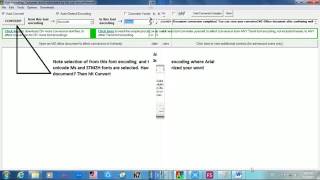
What you find below is a snapshot showing input in Unicode Tamil in MS-Word. A portion of the contents of the snapshot below explains the power of Unicode in effecting 'Sorting in Tamil', 'Find/Replace in Tamil', etc.