

keyboard_pages
Typing in Tamil in Photoshop, Illustrator, CorelDraw, Filmora, etc., etc., etc.
How to type in Tamil in Photoshop, PageMaker, InDesign, CorelDraw, PowerDirector, Filmora, etc.?
- It is a very very simple process, as such. You can display Tamil characters in Photoshop, PageMaker, Illustrator, Filmora, InDesign, CorelDraw, etc. - in any Tamil font (either Unicode or NonUnicode or both) - in more than one way. One of the ways is to directly type in Tamil in Photoshop, InDesign, etc.
- Stmzh, Rgb, SaiIndira, Bamini,TAM, TAB, etc. are examples of Non-Unicode fonts.
- Tscu_SaiIndira, Latha, Arial Unicode MS, Vijaya, Nirmala UI, etc. are examples of Unicode fonts.
- More than me writing anything further, just watch the following videos first and then you will understand better.
- Most of the videos below might be talking about Tanglish (same as Transliteration or Phonetic) typing only but using Azhagi+, one can type in Tamil in Tamil Typewriter, Inscript and TamilNet99 modes also.
ALL-IN-ONE (Photoshop, Illustrator, PowerDirector, etc.)
- Please see this video playlist of very many videos - explaining how to use Azhagi+ to type in applications like Photoshop CC/CS/7, Illustrator, InDesign, CorelDraw, PowerDirector, Filmora, etc., etc., - in 100s of various Tamil fonts - SaiIndira, STMZH, RGB, LT-TM (IndoWord), Unicode, TAM, TAB, TamilBible, Tscii, Bamini, Vanavil, Shreelipi, SunTommy, Amudham, Ka, Diamond, Dci+Tml+Ismail, Gee_Tamil, ELCOT-Madurai, ELCOT-Bilingual, Shree, Chenet Platinum, etc., etc., etc.
- Please see https://www.youtube.com/playlist?list=PLtD96uQyVvjCt-w5fPZdkDRh05IVfyeMQ also. Very very helpful playlist demonstrating how to use Azhagi+ to type in various Adobe products (Illustrator, Premiere Pro, AfterEffects, etc.), esp. Photoshop 7/CC/CS/2021/2022/2023.
PHOTOSHOP
- Start Azhagi+. Select Unicode under 'Font Encoding' (if not already selected so)
- Start Adobe Photoshop CC / CS.
- Then, effect the following setting in Photoshop.
- Now, exit Photoshop fully and RESTART it for sure.
- In a text area, select your Unicode font (TscuSaiIndira, Latha, Vijaya, Arial Unicode MS, Nirmala UI, etc.). For more Unicode fonts of different styles, kindly download them from freefonts.php
- Press Alt+3** and you can start typing seamlessly in Tamil in Adobe Photoshop. That's all to it.
(**) Alt+3 is Azhagi+'s default hotkey for typing in transliteration mode. Alt+4, Alt+6, Alt+7 etc. are the hotkeys for typing in Phonetic, Tamilnet99, TamilTypewriter, etc. modes. - Start Azhagi+. Select STMZH_P under 'Font Encoding' (if you wish to type in STMZH fonts, which are same as RGB fonts)
Select STMZH under 'Font Encoding' (if you wish to type in SR fonts, which are same as STMZH and RGB fonts) - Start Adobe Photoshop CS / CC. Then, effect the following setting in Adobe Photoshop.
- Now, exit Photoshop fully and RESTART it for sure.
- In a text area, select your NonUnicode font (SR, STMZH, SaiIndira, Bamini, etc.). For more NonUnicode fonts of different styles, kindly download them from freefonts.php
- Press Ctrl+Alt+F10, Alt+1, etc. and you can start typing seamlessly in Tamil in Adobe Photoshop in STMZH, SaiIndira, etc. respectively. That's all to it.
(**) Ctrl+Alt+F10, Alt+1, etc. are Azhagi+'s default hotkey for typing in PhoneticTransliteration mode, while using STMZH, Tscii, etc. fonts, resp. To type in TamilTypewriter, Tamilnet99, etc. modes while using STMZH, Tscii fonts, etc., you can either use the Global Hotkey (F10, by default) OR set your own new hotkey for each mode.
1. How to easily type in Tamil using SR fonts (exactly same as STMZH and RGB fonts) in Adobe Photoshop, Premiere Pro, Illustrator, Aftereffects, etc.?
Note: Please see the above video fully and carefully. Do not skip in between.
2. How to type in Tamil in Photoshop CC & CS in Unicode Tamil fonts?
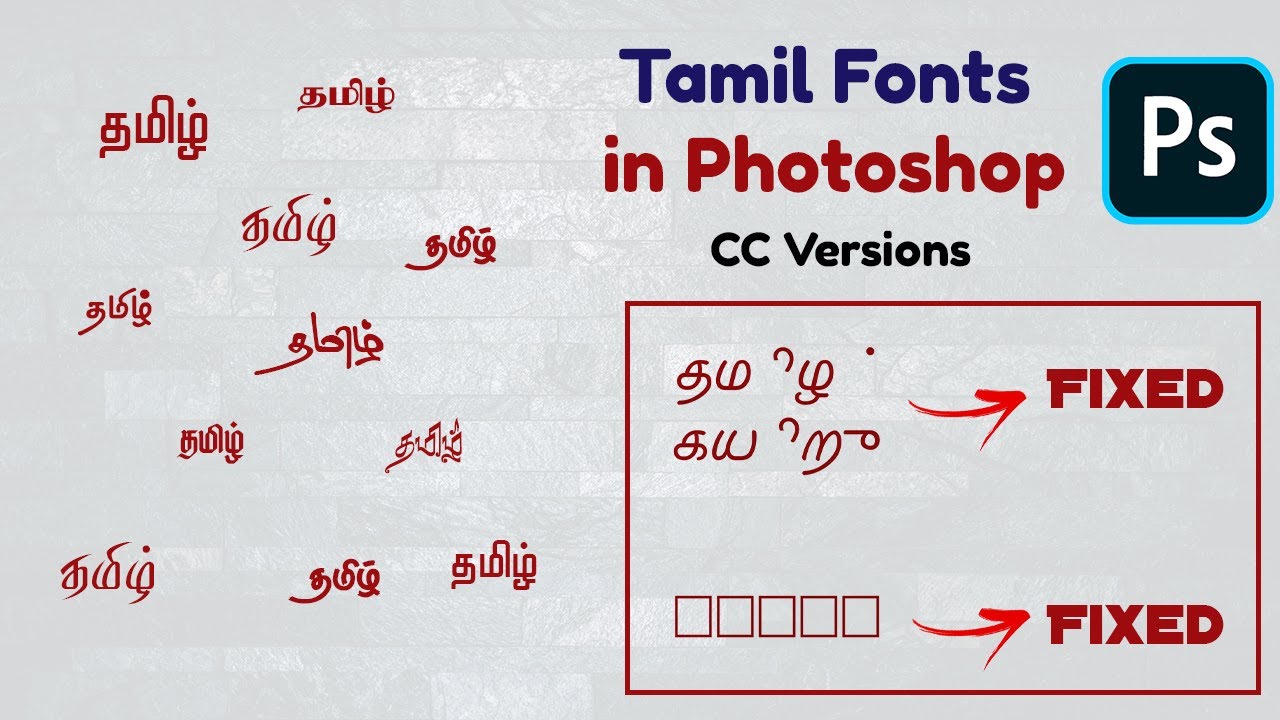
Note: Even after following the instructions in the above video, if you still see disjointed characters or square boxes, then it is possible that you may not have installed your OS' Tamil language pack. To effect the same as your very first step, please read this.
3. How to type in Tamil in Photoshop CC & CS in SR (same as STMZH and RGB) Tamil fonts?
Note: Along with the above video, please see the following videos too.
4. How to type in Tamil in Photoshop CC & CS in STMZH (same as RGB) Tamil fonts?
Note: Along with the steps explained in the above video, you may read this section below too - "Easy solution to the 'space' problem while using Stmzh fonts in PS 2021/2022".
5. How to type in Photoshop CS/CC in Tamil in popular STMZH Tamil fonts?
6. How to easily type in Tamil in RGB/STMZH Tamil fonts in Photoshop CC, using Azhagi+?

7. How to type in Tamil in Photoshop 7 in STMZH (same as RGB) Tamil font?
8. How to type in Tamil in Photoshop 'in any Tamil font' - SaiIndira, Bamini, TAB, etc.?
9. How to type in Tamil in Photoshop 'in any Unicode Tamil font' - Latha, Vijaya, etc.?
10. If you need a quick and crisp textual description of what the above videos explain, then read the following:
(Note: Azhagi+ is the only software, even as of Dec 2022, which can help one type/transliterate in Photoshop CC/CS in STMZH Tamil fonts, straightaway)
Steps for typing in Tamil in Photoshop in Unicode Tamil fonts (Latha, Vijaya, Arial Unicode MS, Nirmala UI, etc.):
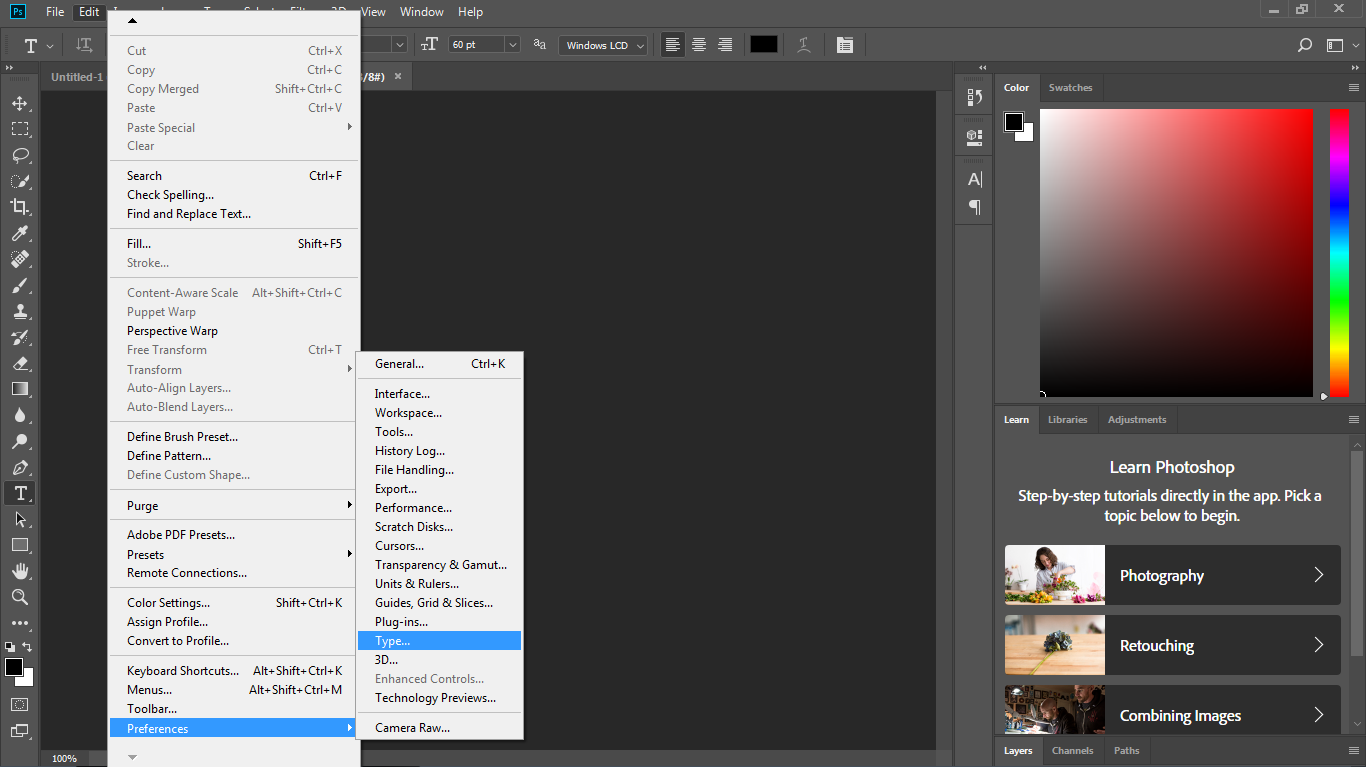
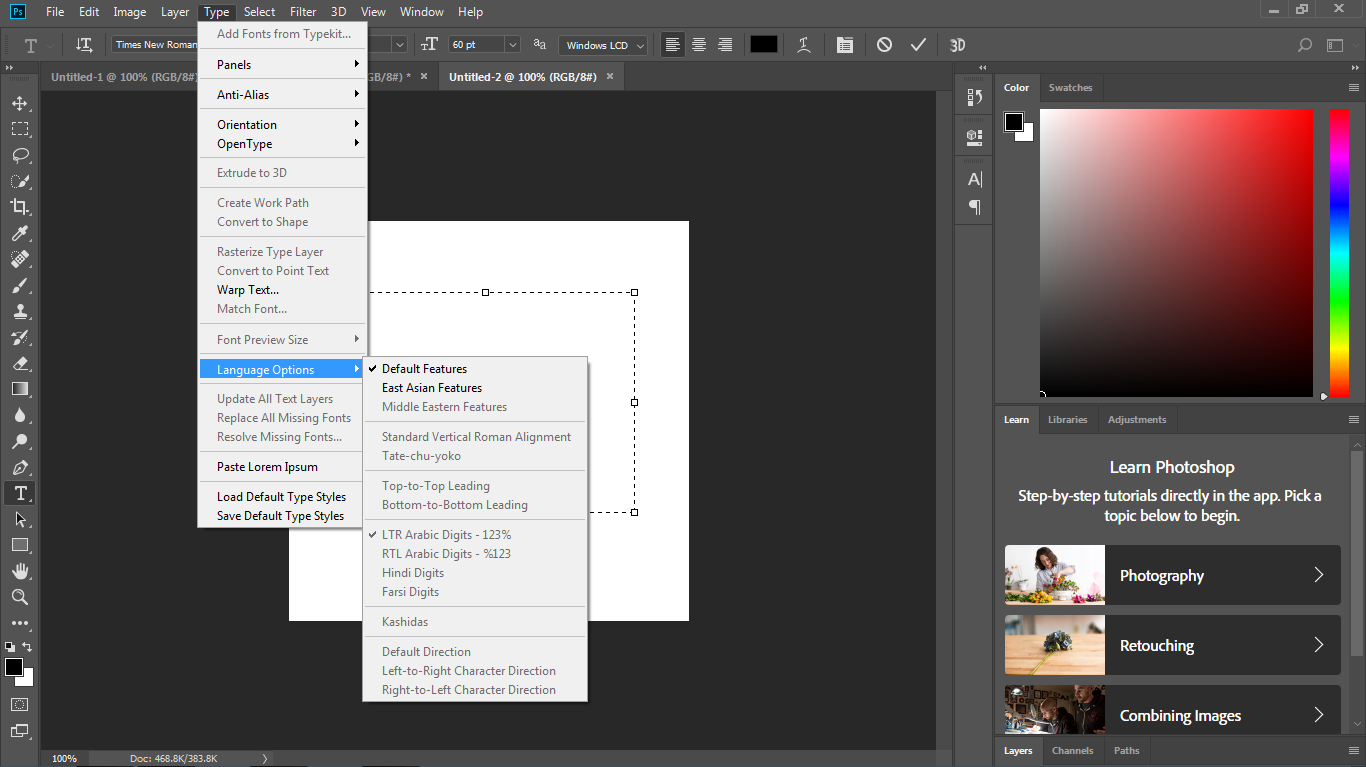
Click on 'Edit->Preferences->Type...' menu item of Photoshop and ENSURE that the radio button 'Middle Eastern and South Asian' (this option is named 'World-Ready Layout' in some versions of Photoshop) is chosen under 'Choose Text Engine Options'.
Steps for typing in Tamil in Photoshop in NonUnicode Tamil fonts (SR, STMZH, SaiIndira, Bamini, TAB, TAM, Tscii, TamilBible, etc.):
Click on 'Edit->Preferences->Type...' menu item of Photoshop and ensure that the radio button 'East Asian' (it is 'Latin and East Asian' in some versions of Photoshop) is chosen under 'Choose Text Engine Options'.
Note-1: If you see Tamil characters getting typed from right to left, just click on 'Type->Language Options' menu item of Photoshop and ensure that 'Left-to-Right Character Direction' is ticked. You might have to do this twice or thrice sometimes, for the effect of this to take place.
Note-2: Along with the aforesaid steps, you may read this section below
too - "Easy solution to the 'space' problem while using Stmzh fonts in PS 2021/2022"
Note-3: Even after reading the above steps, if Unicode typing alone is still not working in PhotoShop, then it may mean that your OS' Tamil Language pack has not yet been installed. To effect the same as your very first step, please read this.
Typing in Tamil in PhotoShop - A detailed writeup by Sri Nithi Anand
Please visit https://nithiclicks.blogspot.com/2020/08/tanglish-2.html. Thanks a TON to Sri Nithi Anand. Brother Sri. Nithi Anand has written various other articles too, on Azhagi+, which are simply superb, I have to say.Typing in Tamil in Photoshop 7
- Unicode typing will NOT work. So, you cannot type in Unicode Tamil fonts in Photoshop 7.
- Non-Unicode typing will work. So, you can type in all non-Unicode Tamil fonts (incl. STMZH) in Photoshop 7.
- To type in STMZH Tamil fonts, select 'STMZH' encoding in Azhagi+. For video demo, please see the 4th video at the top, in this page - https://www.youtube.com/watch?v=YJXIoOjnlFM.
A few important points specific to Photoshop CS3 alone
- Similar to Photoshop 7, Unicode typing does not work. So, you cannot type in Unicode Tamil fonts in Photoshop CS3.
- Non-Unicode typing works, as usual. So, you can type in all non-Unicode Tamil fonts (incl. STMZH) in Photoshop CS3.
- For STMZH Tamil fonts, use 'STMZH_P' encoding in Azhagi+, as is the norm, when it comes to Photoshop CS/CC.
Easy solution to the 'space' problem while using Stmzh fonts in PS 2021/2022
கேள்வி(Q): வணக்கம் சார். அழகி மென்பொருளை உபயோகம் செய்து ஃபோட்டோஷாப் 2021 ல் செந்தமிழ் (STMZH) ஃபான்ட் டைப் செய்யும் போது ஸ்பேஸ் பார் (Space bar) அழுத்தினால் இடைவெளி வருவதற்குப் பதில் ஒரு கட்டம் (BOX) வருகிறது. அதை எப்படி சரி செய்வது? (Ref post: facebook.com/groups/Azhagi/posts/5830770813629097)பதில்: இந்த "ஸ்பேஸ் பார்" பிழை அழகி மென்பொருளால் அல்ல. இது ஃபோட்டோஷாப் 2021/2022 இல் ஏற்பட்ட, செந்தமிழ் எழுத்துருவைப் பொறுத்தவரையிலான, ஒரு பிரச்சினை.
எனவே தாங்கள் செந்தமிழ் எழுத்துருக்களுக்குப் பதிலாக SR எழுத்துருக்களை அழகியில் STMHZ என்கோடிங் ஐ தேர்வு செய்து பயன்படுத்திக்கொள்ளலாம். SR எழுத்துருக்களுக்கு STMZH_P encoding தேர்வு செய்தல் கூடாது.
SR எழுத்துருக்கள் எல்லாமே செந்தமிழ் எழுத்துரு மாடல்தான். செந்தமிழ் எழுத்துருவில் உள்ள அனைத்து டிசைன் எழுத்துருக்களும் அப்படியே ஒரு மாற்றமும் இல்லாமல் SR ஃபாண்டுகளிலும் உள்ளன. வரிசை எண்கள்தான் மாறி இருக்கும். எனவே, தாராளமாய் SR எழுத்துருக்களை STMHZ எழுத்துருக்களுக்குப் பதிலாகப் பயன்படுத்தலாம். நன்றி.
Answer: The issue you are facing with respect to Stmzh fonts is not related to Azhagi or Stmzh fonts. The issue is to do with Photoshop. It has arisen only in the latest PS 2022 and some recent update to PS 2021.
So, for users using PS2022 or latest updated PS2021 and facing the reported issue with Stmzh, the solution is:
--
Using SR fonts and selecting STMZH encoding (you should NOT select STMZH_P encoding for SR fonts) in Azhagi+ will NOT give space problem in PS 2022/2021. You can type all the other Tamil characters smoothly too using SR fonts. No issues.
So, starting to use SR fonts is the way forward.
NOTE-1:
As such, fundamentally, SR fonts are of the same encoding as STMZH fonts and "exactly of the same style in appearance". All the differenty styles and designs of STMZH fonts are present in SR fonts without absolutely no difference. Only the numbering of the fonts might differ. So, using SR fonts is exactly the same as using STMZH fonts and hence you can go ahead using SR fonts.
NOTE-2:
For any further clarifications or help, you can write in (Azhagi Facebook Group). Thanks.
--
ILLUSTRATOR
-
How to type in Tamil in Adobe Illustrator in various Tamil fonts - Unicode or NonUnicode?
Just watch this video - https://www.youtube.com/watch?v=gVYWCPbNdRw - it explains very neatly and clearly as to how to type in Tamil in Adobe Illustrator in various Tamil fonts - Unicode, TAB, SaiIndira, STMZH, LT-TM (IndoWord), TAM, TamilBible, Tscii, Bamini, Vanavil, Shreelipi, SunTommy, Amudham, Ka, Diamond, Dci+Tml+Ismail, Gee_Tamil, ELCOT-Madurai, ELCOT-Bilingual, Shree, etc.
PREMIERE PRO
-
How to type in Tamil in Adobe Premiere Pro?
AFTER EFFECTS
-
How to type in Tamil in Adobe After Effects?
INDESIGN
-
1. How to type in Tamil in Adobe InDesign in any NonUnicode Tamil font - SaiIndira, STMZH, Bamini, TAB, TAM, etc.?
- Only Adobe InDesign CS6 (and above) support Tamil Unicode fully, except for ஶ and it's variants.
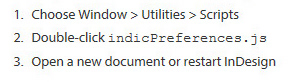
- A setting (as described) has to be effected for proper display of Unicode characters
- In other words:
- Choose Window->Utilities->Scripts
- Double click indicPreferences.js
- Restart InDesign and then open a new document
It is very easy. Adopt a similar procedure as you see in some of the videos above which explain NonUnicode Tamil typing in Photoshop and you can type seamlessly in Tamil in InDesign as well - in Bamini, STMZH, etc. Please note that apart from PhoneticTransliteration, you can type in Tamil in Tamil Typewriter, Inscript and TamilNet99 modes also. And, users have confirmed that NonUnicode typing works 100% perfectly in InDesign.
2. How to type in Tamil in InDesign in any Unicode Tamil font - TscuSaiIndira, Latha, Arial Unicode MS, Nirmala UI, etc.?
Again, it is very easy. Adopt a similar procedure as you see in the last of the above 6 videos (for Photoshop) and you can type seamlessly in Unicode Tamil in InDesign as well. But, please note the following:
PAGEMAKER
-
1. How to type in Tamil in PageMaker in any NonUnicode Tamil font - SaiIndira, STMZH, Bamini, TAB, TAM, etc.?
It is very easy. Adopt a similar procedure as you see in the 1st and 2nd videos of the above 6 videos (for Photoshop) and you can type seamlessly in Tamil in PageMaker as well. Please note that apart from PhoneticTransliteration, you can type in Tamil in Tamil Typewriter, Inscript and TamilNet99 modes also. And, users have confirmed that NonUnicode typing works 100% perfectly in PageMaker. In this context, dtword2.php will also be of good help. You can make use of the steps in that page for PageMaker too.
2. How to type in Tamil in PageMaker in Unicode Tamil fonts?
As far as I know, PageMaker does not support display of Unicode characters. So, you cannot type in Unicode Tamil in PageMaker.
CORELDRAW
-
1. How to type in Tamil in CorelDraw in any NonUnicode Tamil font - SaiIndira, STMZH, Bamini, TAB, TAM, etc.?
- Sometimes, certain 'AutoCorrect' options have to be unticked (for e.g. an option like 'Capitalize first letters of all words'), for Tamil characters to get displayed correctly in all the NonUnicode Tamil fonts. As such, if you are typing in NonUnicode fonts, you can do the following to untick all the AutoCorrect options in CorelDraw:
- Under 'Text' menu, navigate to "Writing Tools" menu item, then click on 'QuickCorrect...' option.
- Under 'QuickCorrect' options, untick all the boxes and press 'OK'. Thanks to Sri. Kesavan Kanchi for the above info.
- Very old versions of CorelDraw may not support Tamil Unicode fully.
- CorelDraw X3(13) and CorelDraw 12 support Unicode fully.
It is very easy. Adopt a similar procedure as you see in the 1st and 2nd videos of the above 6 videos (for Photoshop) and you can type seamlessly in Tamil in CorelDraw as well. Please note that apart from PhoneticTransliteration, you can type in Tamil in Tamil Typewriter, Inscript and TamilNet99 modes also. And, users have confirmed that NonUnicode typing works 100% perfectly in CorelDraw. But, please note the following:
2. How to type in Tamil in CorelDraw in any Unicode Tamil font - TscuSaiIndira, Latha, Arial Unicode MS, Nirmala UI, etc.?
Again, it is very easy. Adopt a similar procedure as you see in the last of the above 6 videos (for Photoshop) and you can type seamlessly in Unicode Tamil in CorelDraw as well. But, please note the following:
OTHER LANGUAGES
Whatever I have written above for Tamil should hold good for other Indian languages too. So, according to the type of font you use in your language (i.e. whether it is Unicode font or Non-Unicode font), adopt a similar strategy as in the case of Tamil.SCREENSHOTS
How to type in Unicode Tamil fonts (Latha, Nirmala UI, Vijaya, Tscu_SaiIndira, Arial Unicode MS, etc.) in Adobe Photoshop?
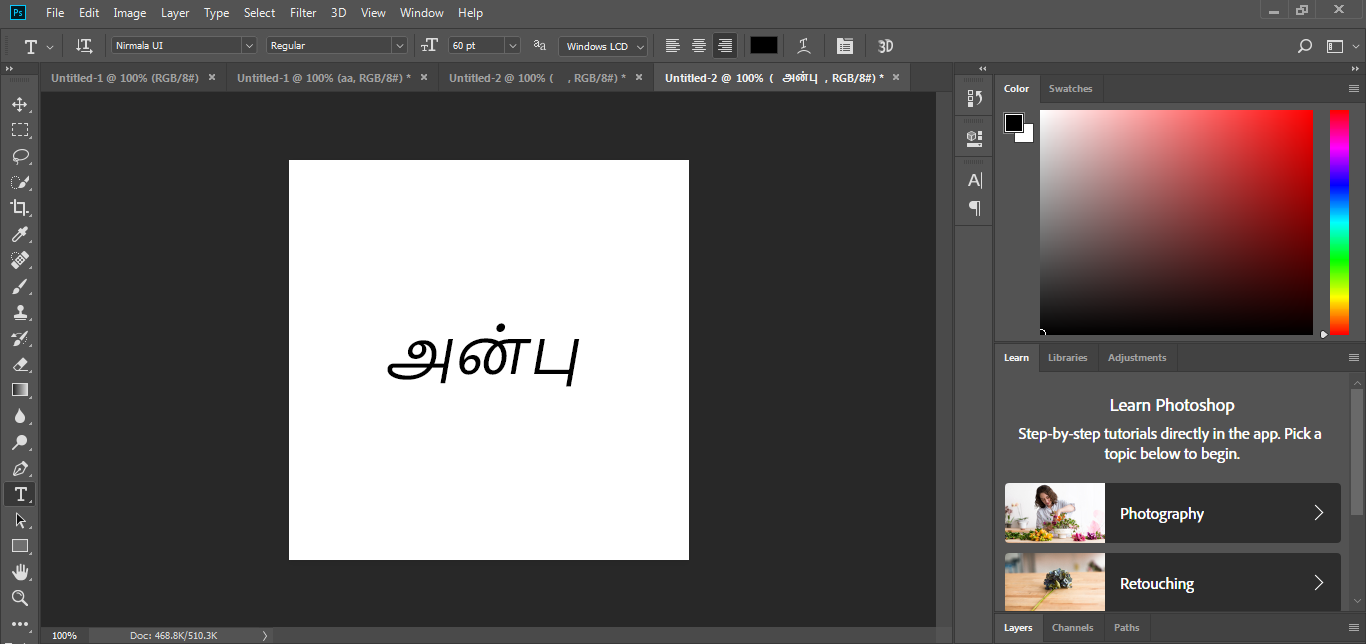
How to type in 'Bamini' Tamil font (Non-Unicode Tamil font) in Adobe Photoshop?
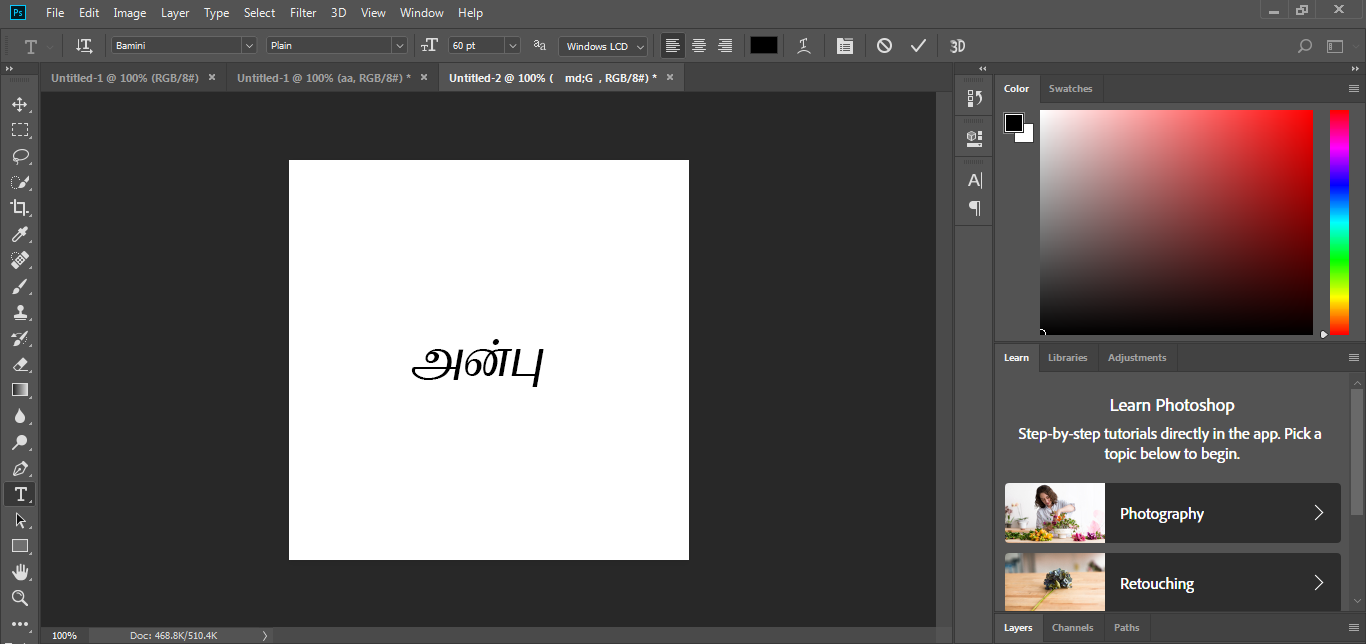
How to type in 'SaiIndira' Tamil font (Non-Unicode Tamil font) in Adobe Photoshop?
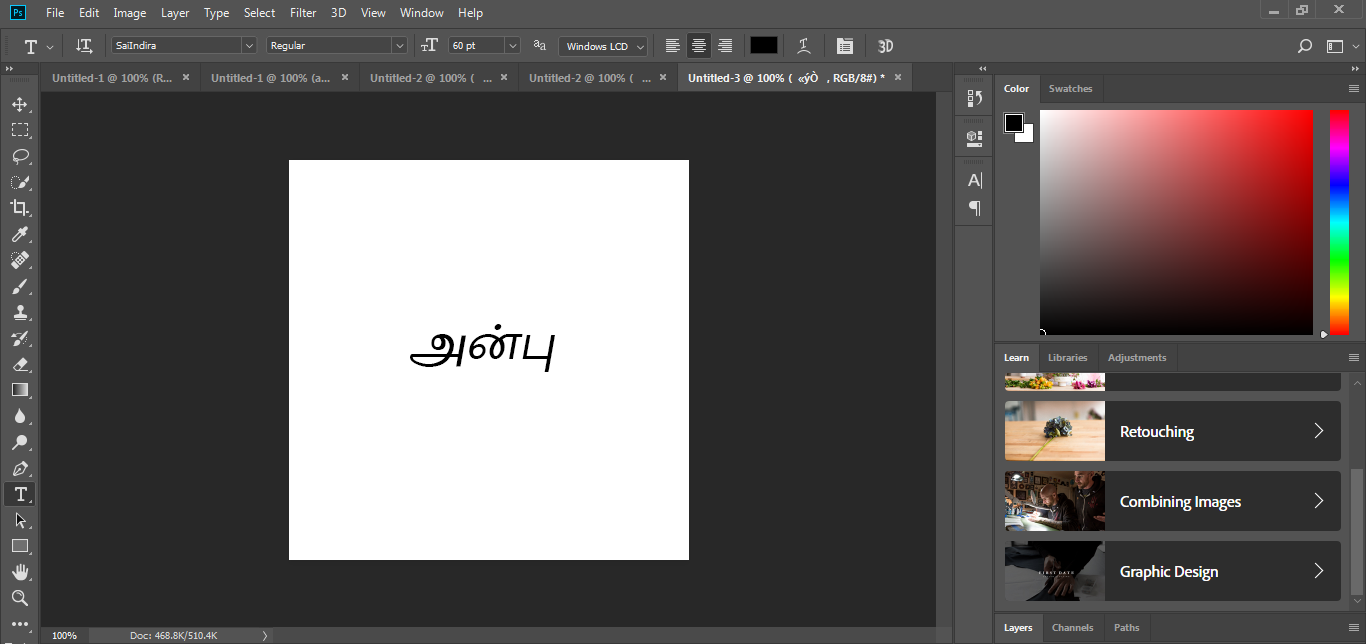
How to type in 'TamilBible' Tamil font (Non-Unicode Tamil font) in Adobe Photoshop?
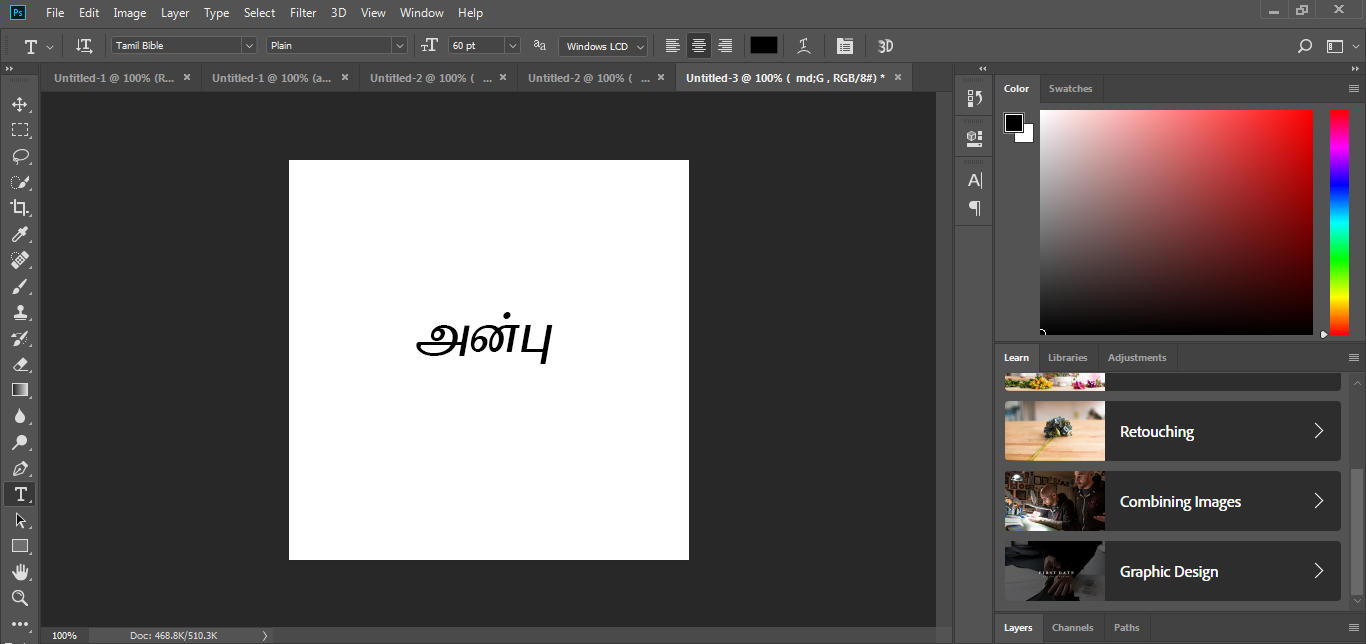
How to type in any 'TAB' Tamil font (Non-Unicode Tamil font encoding) in Adobe Photoshop?
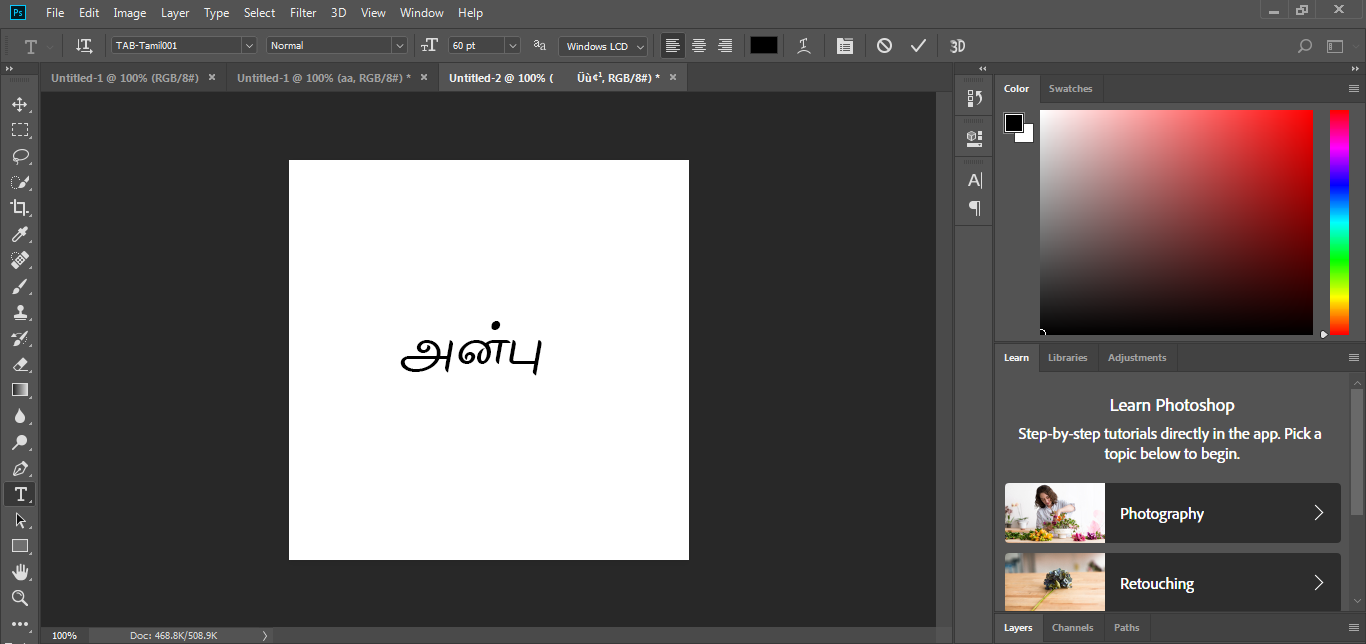
How to type in any 'TAM' Tamil font (Non-Unicode Tamil font encoding) in Adobe Photoshop?
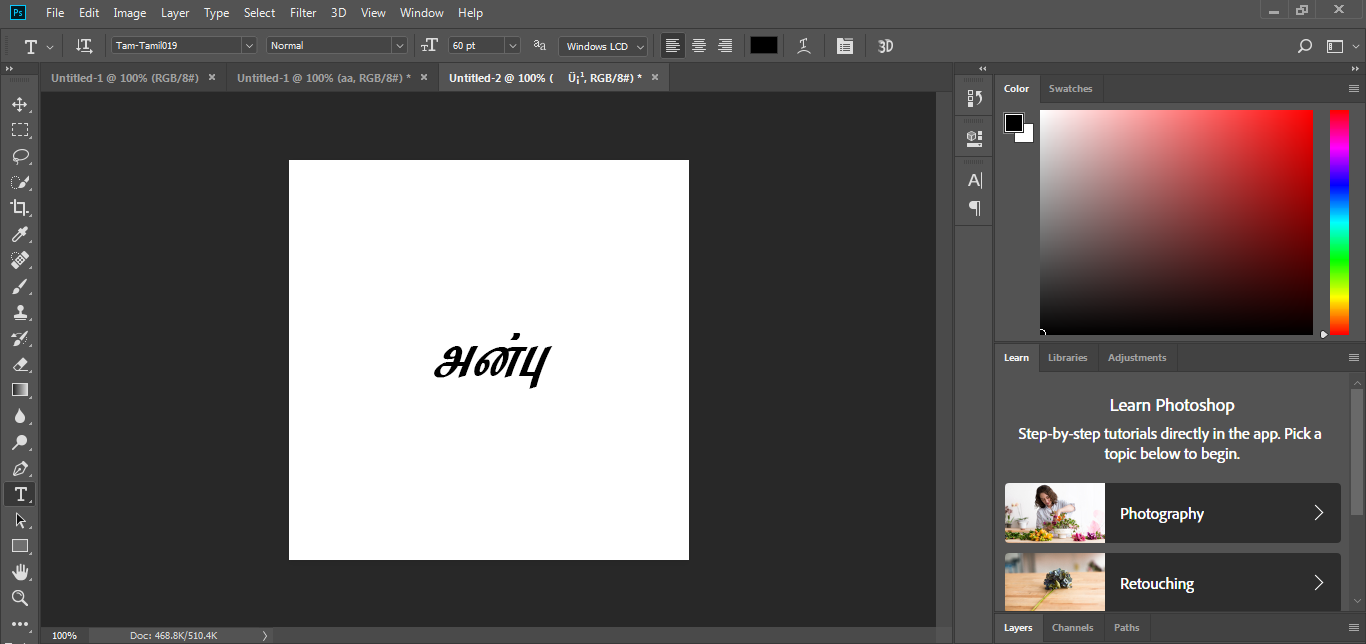
How to type in any 'Tscii' Tamil font (Non-Unicode Tamil font encoding) in Adobe Photoshop?
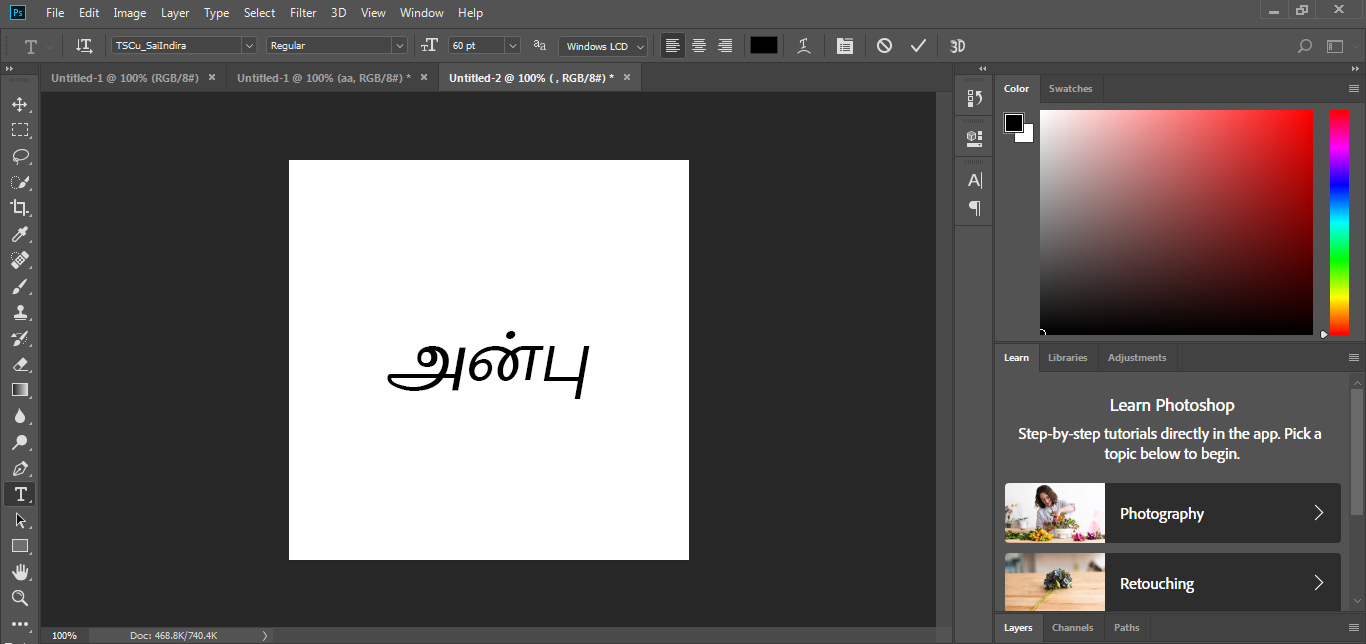
How to type in 'Elcot Bilingual' Tamil font (Non-Unicode Tamil font) in Adobe Photoshop?
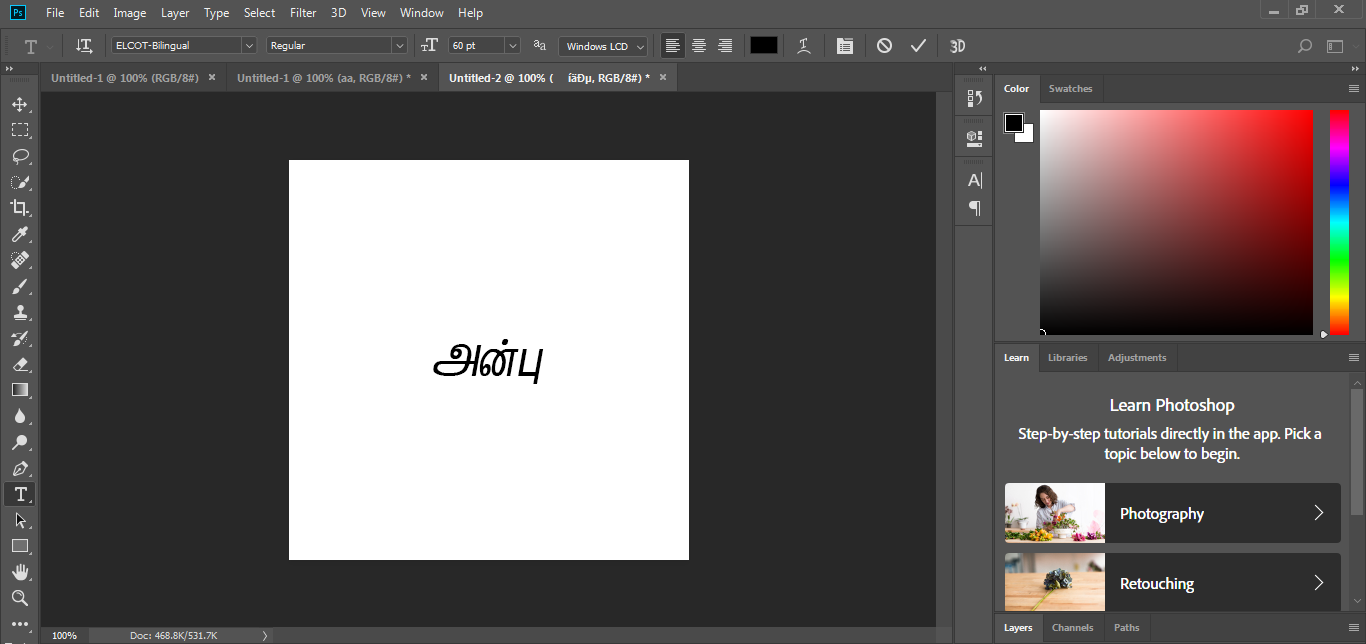
How to type in 'Elcot Madurai' Tamil font (Non-Unicode Tamil font) in Adobe Photoshop?
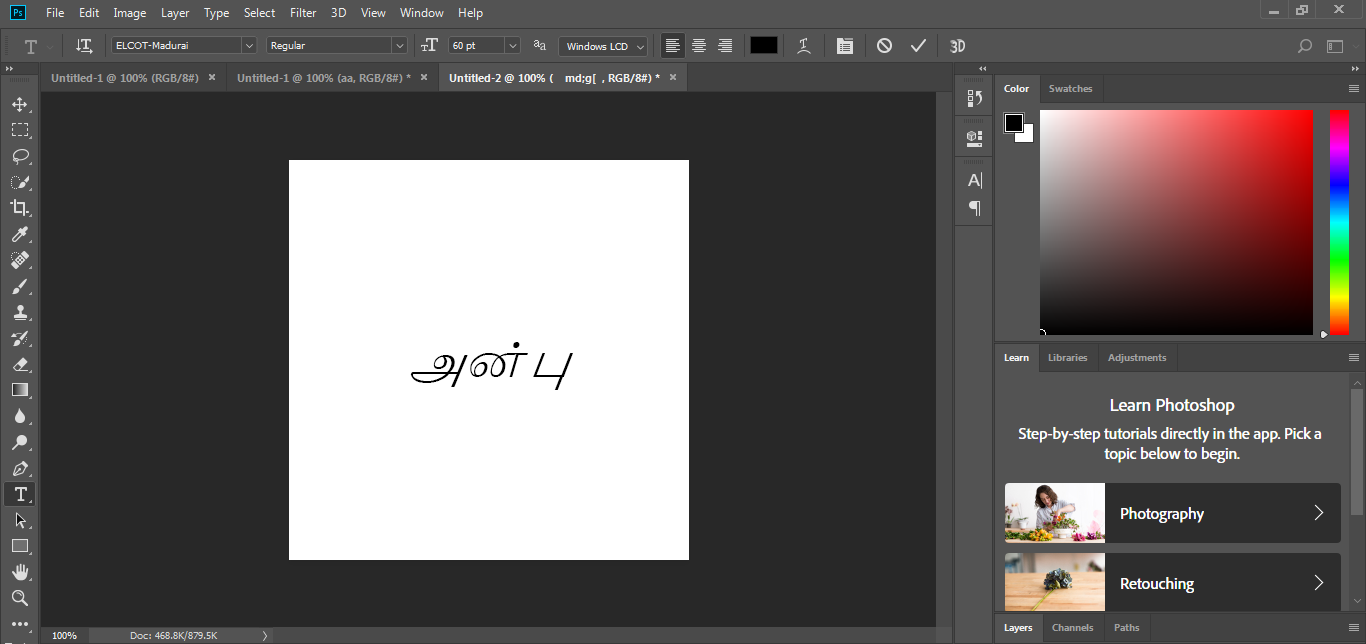
How to access/display the 'Preferences' screen of Adobe Photoshop?
How to choose 'Middle Eastern' option in Adobe Photoshop?
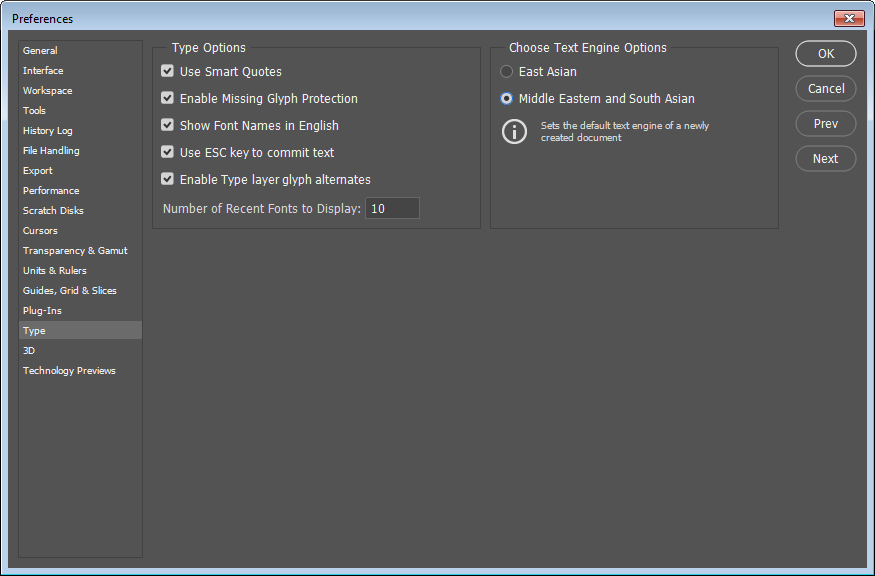
How to access/display the 'Language options' menu of Adobe Photoshop?
How to type in 'Bamini' Tamil font (Non-Unicode Tamil font) in Adobe Photoshop?
How to type in 'SaiIndira' Tamil font (Non-Unicode Tamil font) in Adobe Photoshop?
How to type in 'TamilBible' Tamil font (Non-Unicode Tamil font) in Adobe Photoshop?
How to type in any 'TAB' Tamil font (Non-Unicode Tamil font encoding) in Adobe Photoshop?
How to type in any 'TAM' Tamil font (Non-Unicode Tamil font encoding) in Adobe Photoshop?
How to type in any 'Tscii' Tamil font (Non-Unicode Tamil font encoding) in Adobe Photoshop?
How to type in 'Elcot Bilingual' Tamil font (Non-Unicode Tamil font) in Adobe Photoshop?
How to type in 'Elcot Madurai' Tamil font (Non-Unicode Tamil font) in Adobe Photoshop?
How to access/display the 'Preferences' screen of Adobe Photoshop?
How to choose 'Middle Eastern' option in Adobe Photoshop?
How to access/display the 'Language options' menu of Adobe Photoshop?
🌷🌿🤲 ஒரு நெஞ்சார்ந்த வேண்டுகோள் 🤲🌿🌷
🌷🌿🤲 A heartfelt Appeal 🤲🌿🌷
- Please note that there is no team here. I have been developing all of Azhagi's free apps from my home, amidst many hardships (including extreme health situations at times), ever since 2000, as an offering to God.
- All the support for this SatKarma – a saga of Love - lovingly provided by my better half. Ultimately, All Glory and Thanks to the Lord Almighty alone. Forever.
- All the Azhagi free apps (16 of them as of today, and more to come, God willing) are world class in nature, with many never-before-seen features, benefiting crores across the globe. All these unique apps are available to you at absolutely no cost. Peerless and Priceless. Support for them is free too — even over phone, whatsapp, etc.!!! (Thanks to the Great gopalan sir — eternally, in tons), which is unheard-of, unprecedented and unparalleled, in the field of freeware.
- So, I kindly request you to spread the word about all the Azhagi free apps, esp. in the social media, in as many ways as possible, so that more and more of the society get benefited. One best way is to host a video on one or more of the Azhagi free apps in your YouTube channel (if you own one). I have listed 36 other ways in my spread.php page. Also, please visit contribute.php page and see in what all ways you can contribute to Azhagi — nonmonetarily, nonmaterially.
- By the way, since many years (I will be turning 59 soon), I have striven my best to not to watch TV, not to see movies, not to read newspapers, not to hear songs, etc. I go out of my home itself only rarely. I have worked ever so hard on Azhagi, working late night many a times. I have worked the whole night through too, now and then (extending to the next day too occasionally), even amidst my chronic health issues. My motto is to spend as much time as I can on Azhagi free apps and Azhagi free apps alone (in other words, in Azhagi SatKarma alone), until I am destined to.
- In fact, as mentioned here, I have been praying to God to give me boons like "no-Hunger, no-Sleep, no-Thirst, etc."... with the best of health condition and a serene mental state always, in order to carry out Azhagi SatKarma without any interruptions, whatsoever.
- So, after using any of Azhagi's free apps for a few days, kindly please share your feedback and testimonials for it (at my email address Birthless.Deathless@gmail.com). I would greatly appreciate it. Alternatively, you can share your feedback or testimonials in Azhagi's facebook group, if you prefer it that way. Even a one-liner saying "Everything is working well" would be of immense value. Thanks.
- You may also prefer to share your testimonial or heartfelt feelings on Azhagi in the comments section of the very loving write-up on Azhagi in 'Sri Sathya Sai Yugam' webzine. I will feel mighty glad.
- In my own personal humble opinion, sharing your testimonial for Azhagi is one other soulful opportunity for you to offer your immense Gratitude to the Divine. Thanks.
- For examples on how users have shared their hearty/heartfelt testimonials for Azhagi in the past, please visit the testimonials page.
-
Humbly Yours - viswanathan - author, Azhagi free apps
| Sri Sathya Sai Yugam - on Azhagi || ஸ்ரீ சத்யசாயி யுகம் - ஸ்வாமியின் அழகி குறித்து |
Spread, Host, and Contribute
- Spread the word: Once you have started to use any of the Azhagi free apps comfortably, I kindly request you to spread the word about them, esp. in the social media, in as many ways as possible, so that more and more of the society get benefited. Thanks.
- Host a video: Please host a video demo on any of the Azhagi free apps in your YouTube channel (if you own one) — this is one of the best ways in which you can help spread the word about 'Azhagi for Mac'. I have listed 36 other ways in my spread.php page.

- Contribute non-monetarily, non-materially: Please visit contribute.php page and see in what all ways you can contribute to Azhagi, non-monetarily, non-materially.
🌷🌿🤲 ஒரு நெஞ்சார்ந்த வேண்டுகோள் 🤲🌿🌷
🌷🌿🤲 A heartfelt Appeal 🤲🌿🌷
- Please note that there is no team here. I have been developing all of Azhagi's free apps from my home, amidst many hardships (including extreme health situations at times), ever since 2000, as an offering to God.
- All the support for this SatKarma – a saga of Love - lovingly provided by my better half. Ultimately, All Glory and Thanks to the Lord Almighty alone. Forever.
- All the Azhagi free apps (16 of them as of today, and more to come, God willing) are world class in nature, with many never-before-seen features, benefiting crores across the globe. All these unique apps are available to you at absolutely no cost. Peerless and Priceless. Support for them is free too — even over phone, whatsapp, etc.!!! (Thanks to the Great gopalan sir — eternally, in tons), which is unheard-of, unprecedented and unparalleled, in the field of freeware.
- So, I kindly request you to spread the word about all the Azhagi free apps, esp. in the social media, in as many ways as possible, so that more and more of the society get benefited. One best way is to host a video on one or more of the Azhagi free apps in your YouTube channel (if you own one). I have listed 36 other ways in my spread.php page. Also, please visit contribute.php page and see in what all ways you can contribute to Azhagi — nonmonetarily, nonmaterially.
- By the way, since many years (I will be turning 59 soon), I have striven my best to not to watch TV, not to see movies, not to read newspapers, not to hear songs, etc. I go out of my home itself only rarely. I have worked ever so hard on Azhagi, working late night many a times. I have worked the whole night through too, now and then (extending to the next day too occasionally), even amidst my chronic health issues. My motto is to spend as much time as I can on Azhagi free apps and Azhagi free apps alone (in other words, in Azhagi SatKarma alone), until I am destined to.
- In fact, as mentioned here, I have been praying to God to give me boons like "no-Hunger, no-Sleep, no-Thirst, etc."... with the best of health condition and a serene mental state always, in order to carry out Azhagi SatKarma without any interruptions, whatsoever.
- So, after using any of Azhagi's free apps for a few days, kindly please share your feedback and testimonials for it (at my email address Birthless.Deathless@gmail.com). I would greatly appreciate it. Alternatively, you can share your feedback or testimonials in Azhagi's facebook group, if you prefer it that way. Even a one-liner saying "Everything is working well" would be of immense value. Thanks.
- You may also prefer to share your testimonial or heartfelt feelings on Azhagi in the comments section of the very loving write-up on Azhagi in 'Sri Sathya Sai Yugam' webzine. I will feel mighty glad.
- In my own personal humble opinion, sharing your testimonial for Azhagi is one other soulful opportunity for you to offer your immense Gratitude to the Divine. Thanks.
- For examples on how users have shared their hearty/heartfelt testimonials for Azhagi in the past, please visit the testimonials page.
-
Humbly Yours - viswanathan - author, Azhagi free apps
| Sri Sathya Sai Yugam - on Azhagi || ஸ்ரீ சத்யசாயி யுகம் - ஸ்வாமியின் அழகி குறித்து |
Spread, Host, and Contribute
- Spread the word: Once you have started to use any of the Azhagi free apps comfortably, I kindly request you to spread the word about them, esp. in the social media, in as many ways as possible, so that more and more of the society get benefited. Thanks.
- Host a video: Please host a video demo on any of the Azhagi free apps in your YouTube channel (if you own one) — this is one of the best ways in which you can help spread the word about 'Azhagi for Mac'. I have listed 36 other ways in my spread.php page.
- Contribute non-monetarily, non-materially: Please visit contribute.php page and see in what all ways you can contribute to Azhagi, non-monetarily, non-materially.
Azhagi - God's Own Apps - Videos
Videos on Tamil typing using Azhagi+




































Videos on SITA (SaiIndira TAmil) Self-Typing fonts
SITA fonts - Unique and first of their kind - Click here for full details
Videos on Indic typing using Azhagi+


Videos on AAW, AAE


Videos on Azhagi++




Video on Alt+3 vs Alt+4
Videos on Portable Azhagi+

